Agent Settings: Capabilities
Overview
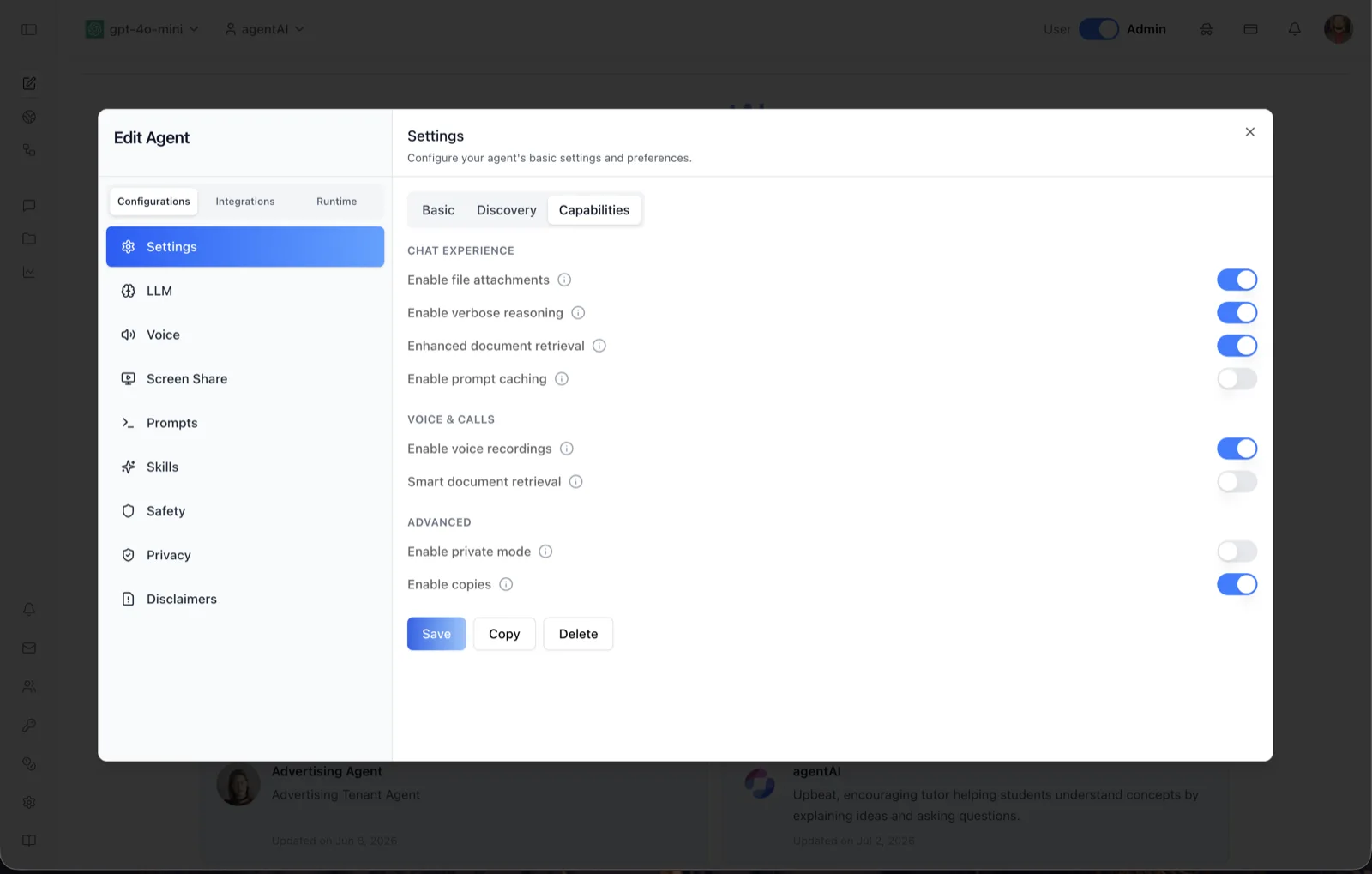
The Capabilities sub-tab of the Settings panel switches individual agent abilities on or off. The panel header reads: "Configure your agent's basic settings and preferences." Toggles are grouped into three sections — Chat Experience, Voice & Calls, and Advanced.
Capabilities is the third sub-tab at the top of the Settings panel, after Basic and Discovery. All three sub-tabs share one form, so Save submits everything at once. Some toggles are permission- or organization-gated, so the exact set you see can vary (for example, the private-mode toggle only appears when the organization allows chat-privacy control).
To reach this screen, open the Edit Agent modal, stay on the Configurations tab group, select Settings in the left sidebar, then click the Capabilities sub-tab.
Target Audience
Administrator | Agent Builder
Settings Reference
Chat Experience
Enable file attachments
Tooltip: "Lets users attach files in the chat." When on, the chat interface shows file-attachment options so users can upload files into the conversation. Shown on in the screenshot.
Enable verbose reasoning
Tooltip: "Show the agent's reasoning steps while it responds." When on, the chat displays the agent's intermediate reasoning while the reply streams, instead of only the final answer. Shown on in the screenshot.
Enhanced document retrieval
Tooltip: "Runs several search queries per question to pull more relevant documents — more thorough answers, slightly slower." This is multi-query retrieval over the agent's knowledge base: each user question is expanded into multiple search queries so relevant material is less likely to be missed. Shown on in the screenshot.
Enable prompt caching
Tooltip: "Caches large or long system prompts so they are reused across requests, reducing LLM cost and latency. By default this is disabled." Turn this on for agents with long system prompts to cut cost and speed up responses. Shown off in the screenshot.
Voice & Calls
Enable voice recordings
Tooltip: "Lets users send voice recordings in the chat." When on, the chat interface shows voice-recording options. Shown on in the screenshot.
Smart document retrieval
Tooltip: "On a call, the agent fetches documents only when it needs them instead of on every turn — faster replies. The knowledge base stays available either way." This voice-call optimization uses function calling for retrieval, so knowledge-base lookups happen on demand during calls. Shown off in the screenshot.
Advanced
Enable private mode
Tooltip: "When on, every conversation with this agent runs in private mode — no chat history or memory is stored for any user. Use this for sensitive or compliance-bound deployments." This is an agent-level kill switch for chat history; the row only appears when the organization allows chat-privacy control. Shown off in the screenshot.
Enable copies
Tooltip: "Lets other admins make their own copy of this agent." When on, the agent is copyable and other administrators can duplicate it (the Copy button on this panel also depends on it). Shown on in the screenshot.
Other capability toggles
Depending on organization configuration and your permissions, this sub-tab can also expose additional toggles, including Remember past conversations (lets the agent store and reference memory from earlier chats), Enable voice calls (voice-call options in chat), and Enable screen sharing (screen share during calls).
The agent's dedicated sandbox is not configured here. It is chosen on the Sandbox tab, which offers three mutually exclusive sandbox kinds and always has one of them active.
Save, Copy, Delete
Save persists the whole Settings form (all three sub-tabs). Copy duplicates the agent (available when copies are enabled). Delete removes the agent after confirmation and appears only for users with delete permission.
How to Use
Step 1: Open the Capabilities sub-tab
Open the Edit Agent modal, keep Configurations selected, click Settings in the sidebar, then choose the Capabilities sub-tab.
Step 2: Configure the chat experience
Decide whether users can attach files, whether the agent shows its reasoning, and whether retrieval should run in enhanced multi-query mode. Turn on Enable prompt caching if the agent's system prompt is long and you want lower cost and latency.
Step 3: Configure voice behavior
Turn on Enable voice recordings if users should be able to send voice messages, and Smart document retrieval if voice calls should fetch documents on demand for faster replies.
Step 4: Set advanced options
Turn on Enable private mode for compliance-sensitive deployments where no chat history or memory should ever be stored. Use Enable copies to let other admins clone the agent.
Step 5: Save
Click Save to apply all capability changes.