Notification Alerts
Overview
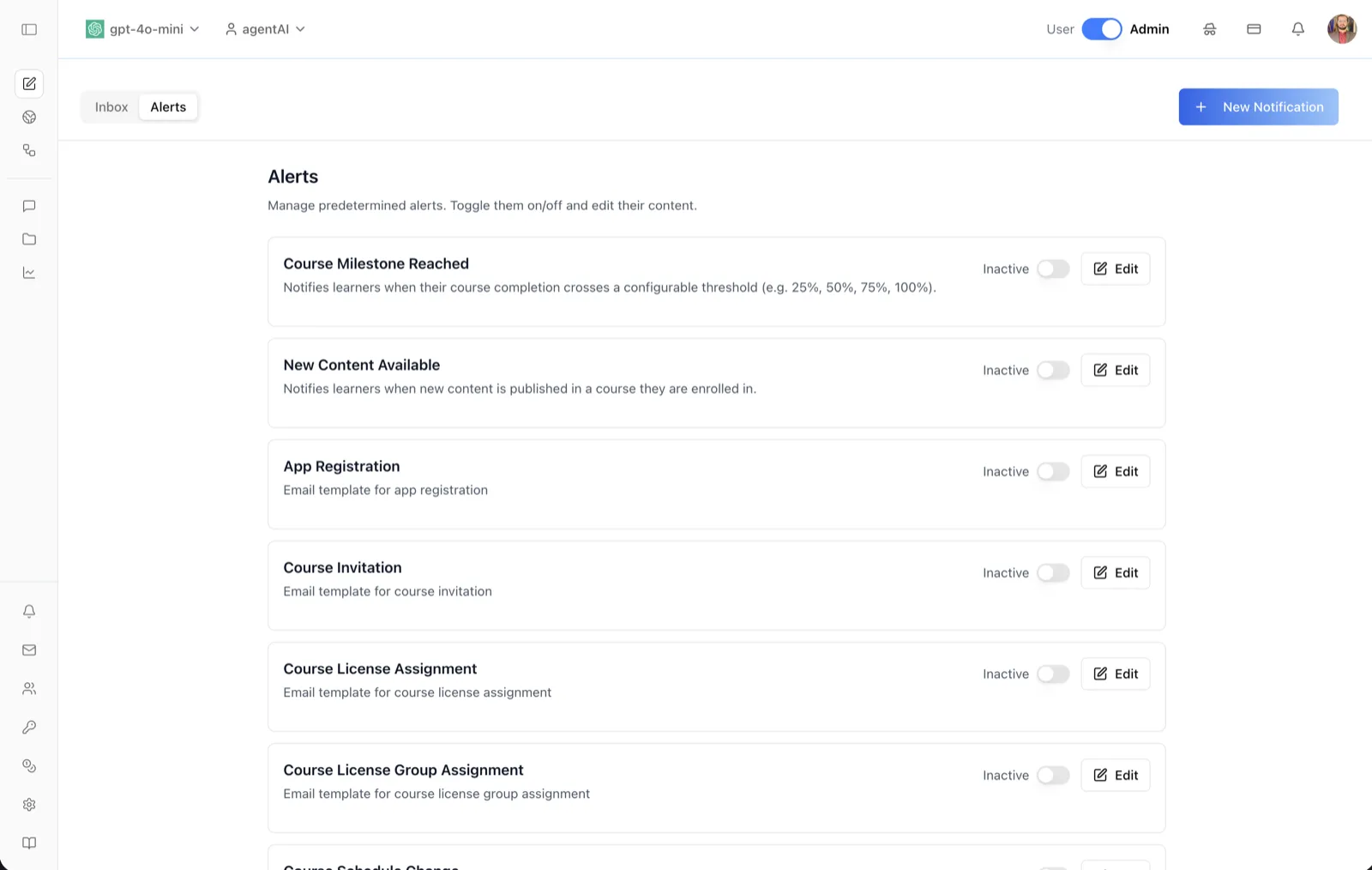
The Alerts tab manages the platform's predefined, automated notifications. As the page states: "Manage predetermined alerts. Toggle them on/off and edit their content." Each alert is a template tied to a platform event — a learner hitting a course milestone, new content being published, a registration, an invitation — that fires automatically when the event occurs.
Every alert appears as a card with its name, a description of when it triggers, an Active/Inactive toggle, and an Edit button for customizing the message that gets delivered. Alerts are off ("Inactive") until an administrator enables them.
Reach the tab from the notifications page: open Notifications from the bell icon or the left navigation, then switch the top-left toggle from Inbox to Alerts. The + New Notification button remains available here for sending one-off messages.
Target Audience
Administrator
Features
Alert cards
Each predefined alert is listed with its name and trigger description. Alerts visible on this screen include: Course Milestone Reached ("Notifies learners when their course completion crosses a configurable threshold (e.g. 25%, 50%, 75%, 100%)."), New Content Available ("Notifies learners when new content is published in a course they are enrolled in."), App Registration ("Email template for app registration"), Course Invitation ("Email template for course invitation"), Course License Assignment, Course License Group Assignment, and Course Schedule Change.
Active / Inactive toggle
Each card carries a switch showing the alert's current state. Toggling it on activates the alert so the platform starts delivering it when its trigger event occurs; toggling it off silences it without deleting the template.
Edit button
Opens the "Edit Notification Template" dialog for that alert, described as "Update the notification content and cadence. Required fields are indicated in the form." The dialog contains a Template Name field (non-customizable — it identifies the alert), a Message Title field ("Required. This appears in the notification header."), and a Message Body field ("Required. Provide the full content that will be delivered to learners.").
New Notification
The + New Notification button in the top-right opens the same compose dialog as the Inbox tab for sending a one-off notification to selected users or groups.
How to Use
Step 1: Open the Alerts tab
Go to the notifications page and click Alerts in the Inbox/Alerts toggle at the top-left. The list of predefined alert templates loads.
Step 2: Customize the message
Click Edit on an alert. Adjust the Message Title and Message Body (the Template Name is fixed), then save. Both fields are required.
Step 3: Activate the alert
Flip the card's toggle from Inactive to active. From then on, the platform sends the alert automatically whenever its trigger event occurs — for example, each time a learner crosses a course-completion threshold.
Step 4: Silence when needed
Toggle an alert back to Inactive at any time to stop deliveries; your edited content is preserved for when you re-enable it.