Agent Settings: Evals
Overview
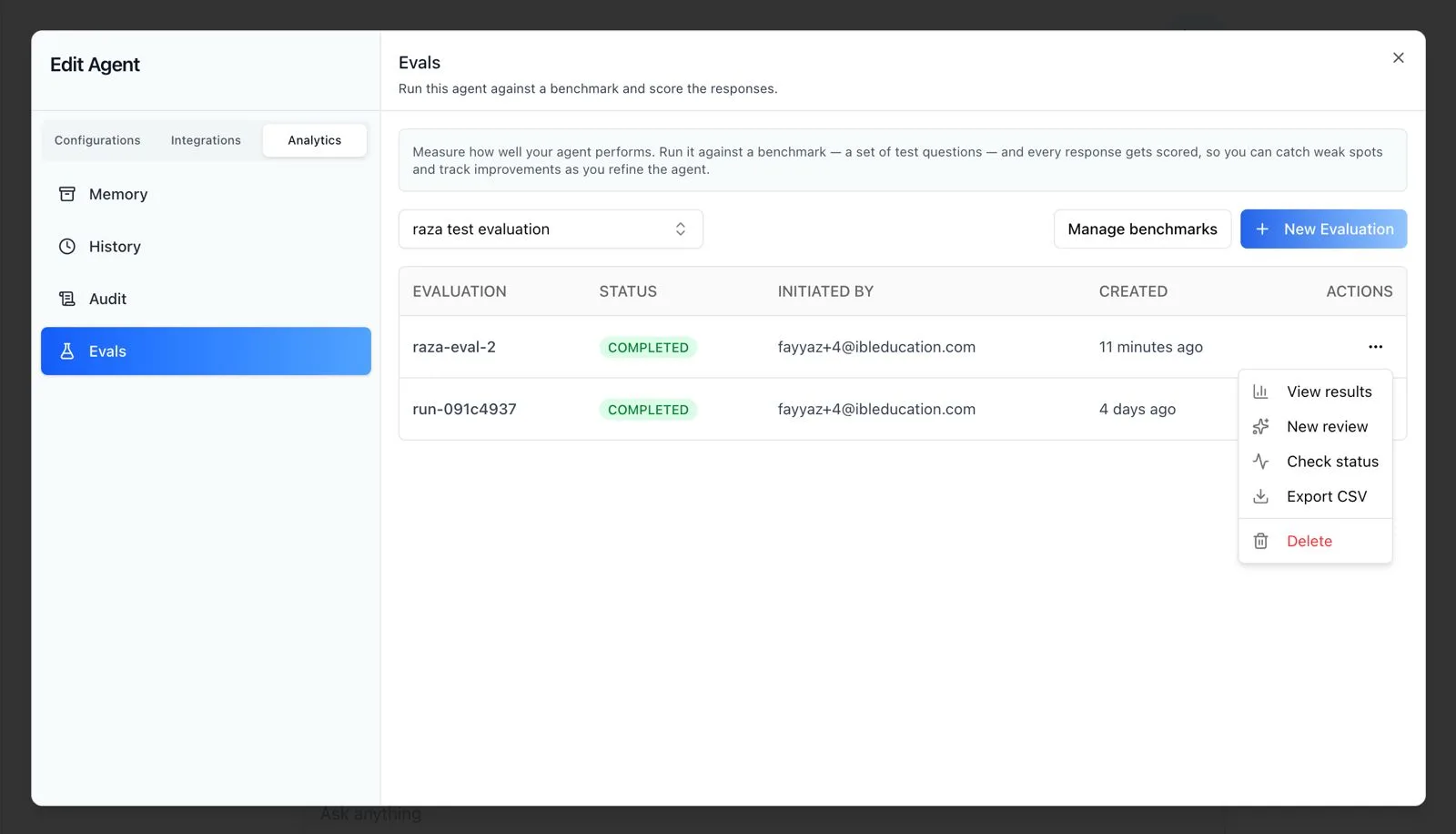
The Evals panel measures how well an agent performs by running it against a benchmark — a set of test questions — and scoring every response, so you can catch weak spots and track improvements as you refine the agent. The panel header reads: "Run this agent against a benchmark and score the responses," and the helper banner explains: "Measure how well your agent performs. Run it against a benchmark — a set of test questions — and every response gets scored, so you can catch weak spots and track improvements as you refine the agent."
A benchmark is a graded test set: each item pairs an input (the question) with an optional expected output (the answer you want). These evaluation benchmarks are separate from an agent's Datasets — Datasets are the RAG documents that ground the agent's answers, while benchmarks are the test cases used to grade them. Benchmark items can be authored directly, uploaded from a CSV, or seeded from existing chat traces so real conversations become test cases.
Running an evaluation is asynchronous: it dispatches a background job that sends every benchmark question to the agent and records each response as a trace. A run moves through pending → in progress → completed, and must reach Completed before it can be reviewed or exported.
To reach this screen, open the Edit Agent modal, go to the Analytics tab, and select Evals from its sidebar (alongside Memory, History, and Audit). Evals is admin-gated: it is only available to users with permission to view the agent's analytics. Evaluation data is scoped to your organization and isolated — no other organization can read your benchmarks, runs, or scores.
Target Audience
Administrator | Agent Builder
Running an Evaluation
The panel lists every evaluation run for the agent in a table with Evaluation, Status, Initiated By, Created, and Actions columns. Above the table, a benchmark selector chooses which test set to run, Manage benchmarks opens benchmark authoring, and New Evaluation starts a run of the selected benchmark against the current agent.
Each row's Actions menu (⋯) exposes:
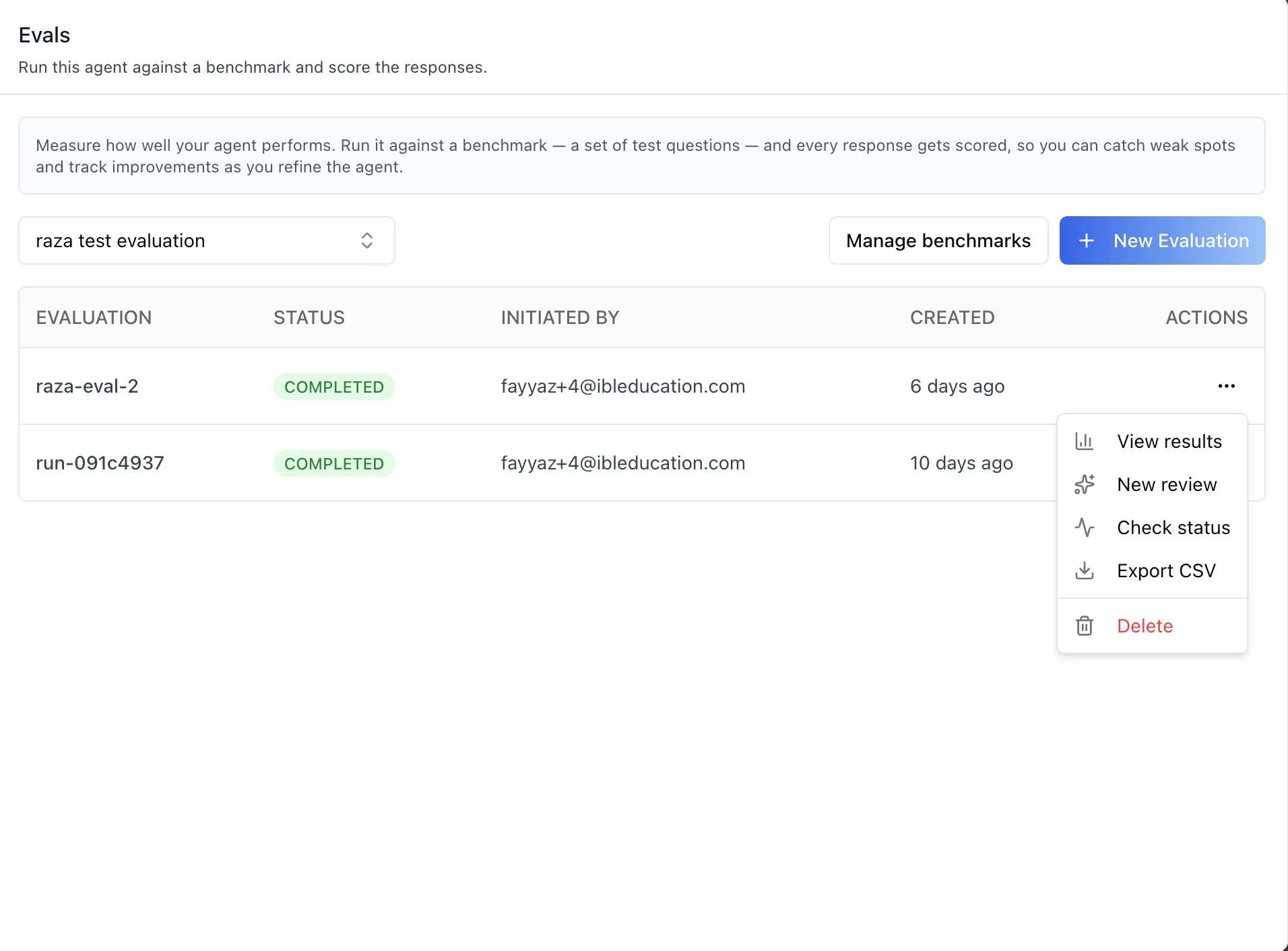
View results
Opens the run detail — every trace with its input, expected output, actual output, and any scores.
New review
Starts an LLM-as-Judge review of the run (see below).
Check status
Polls the background task's current state (pending, in progress, completed, or failed).
Export CSV
Downloads the run's results as a spreadsheet — one row per item with item_id, input, expected_output, actual_output, trace_id, and one column per score.
Delete
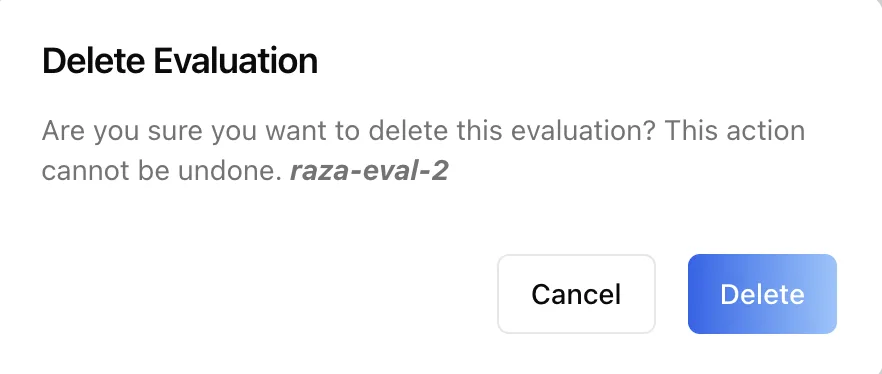
Removes the run. This is destructive and is confirmed before it proceeds.
View results, New review, and Export CSV stay disabled until the run reaches Completed. The status badge is colored by state — green for COMPLETED, red for FAILED, blue for anything still in flight — and Check status refreshes a single row without reloading the table.
Managing Benchmarks
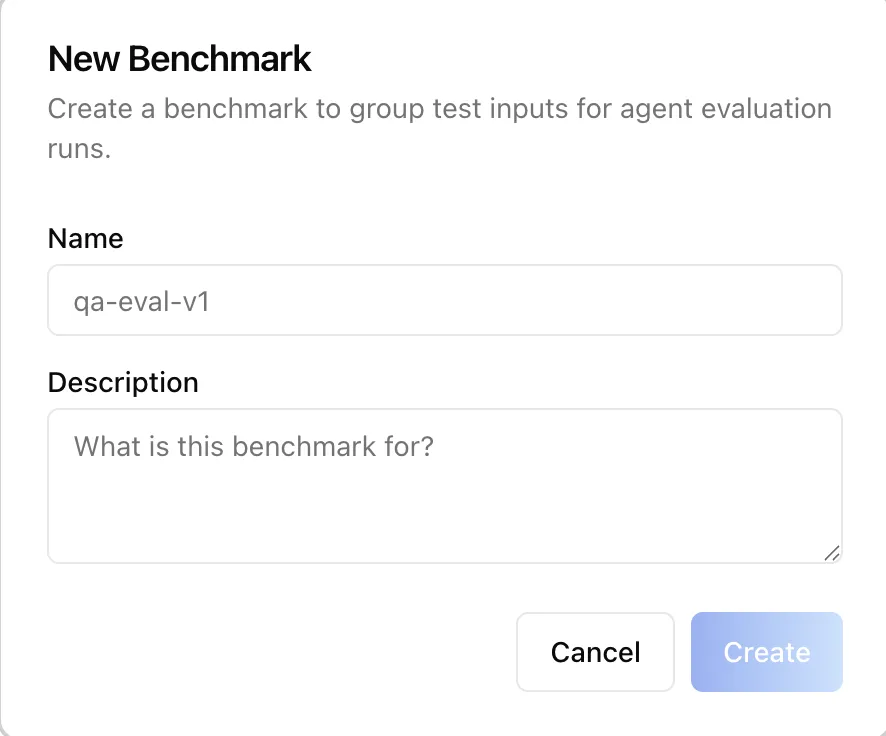
Manage benchmarks opens the benchmark library. Benchmarks are organization-wide, not tied to one agent — the same test set can be run against several agents, which is what makes it possible to compare them on equal footing. The dialog lists every benchmark with a search box and a New Benchmark action that takes a name and a description.
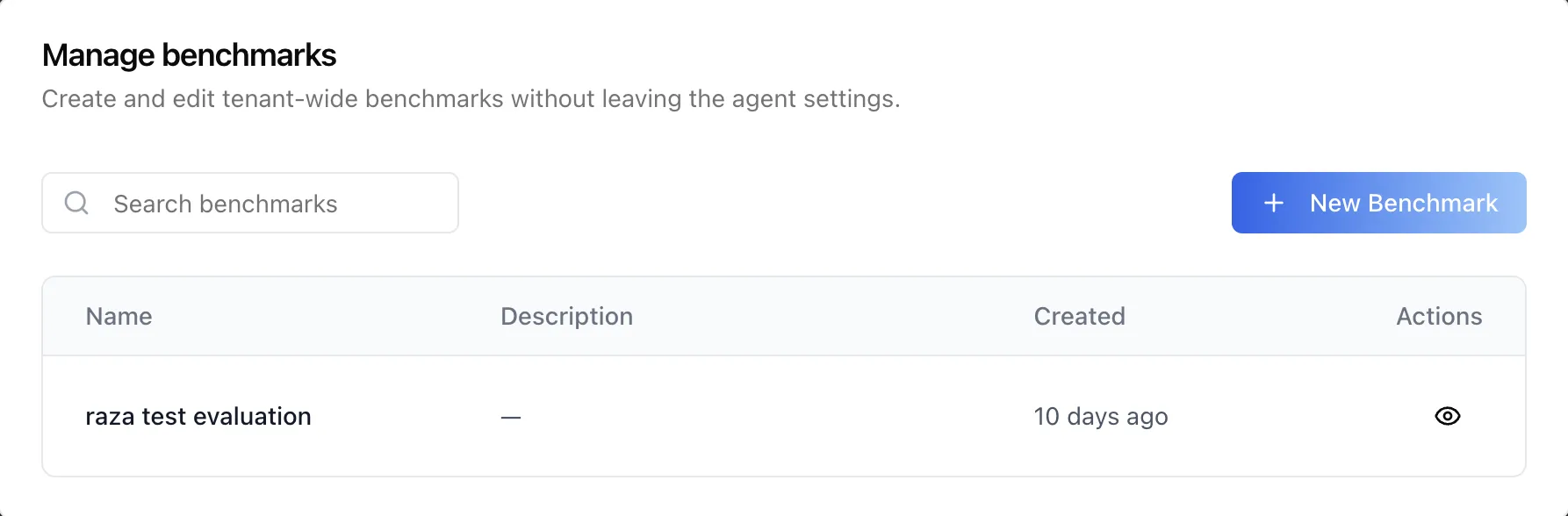
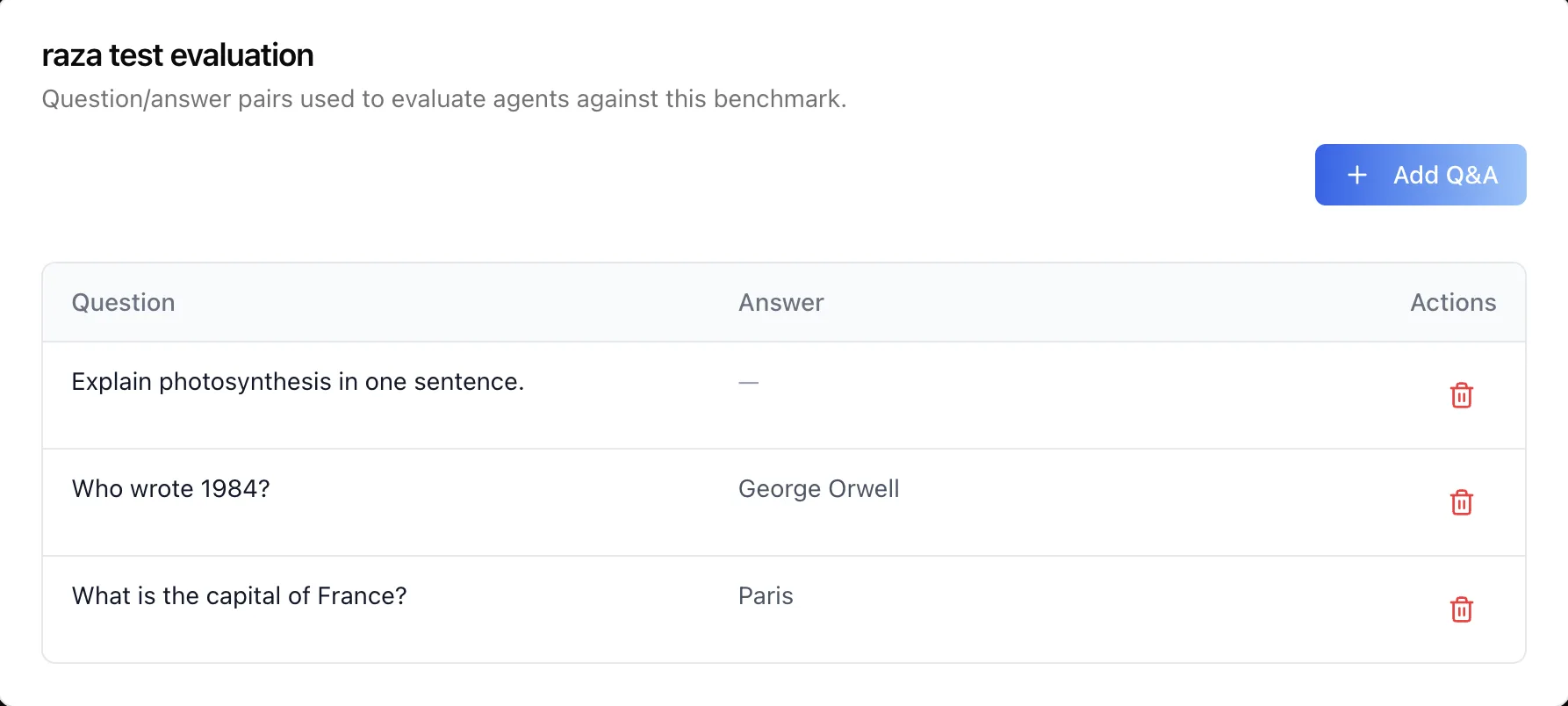
Opening a benchmark shows its Q&A items — the question/answer pairs the agent is tested against. Each item pairs an input with an optional expected output.
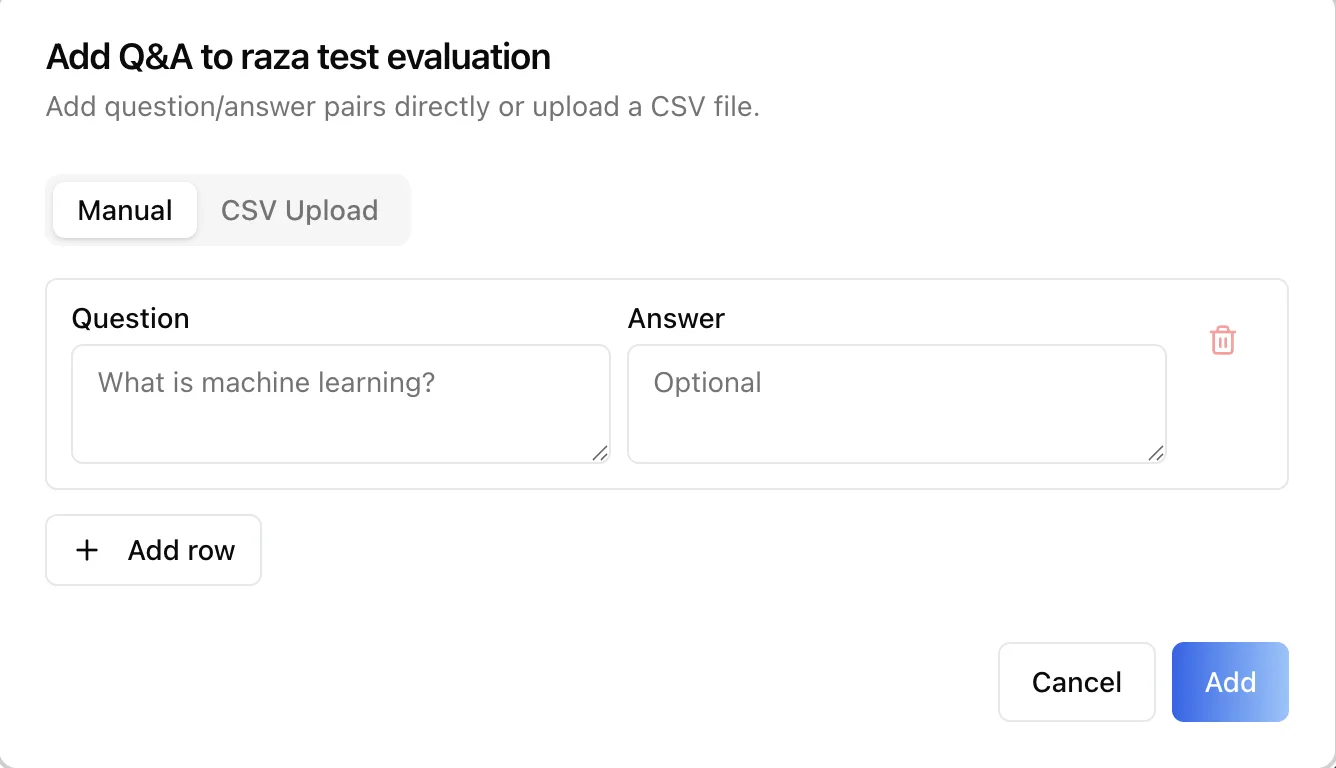
Add Q&A offers two paths:
Manual entry
Type the question and, optionally, the expected answer directly into the form — the quickest way to add a handful of cases.
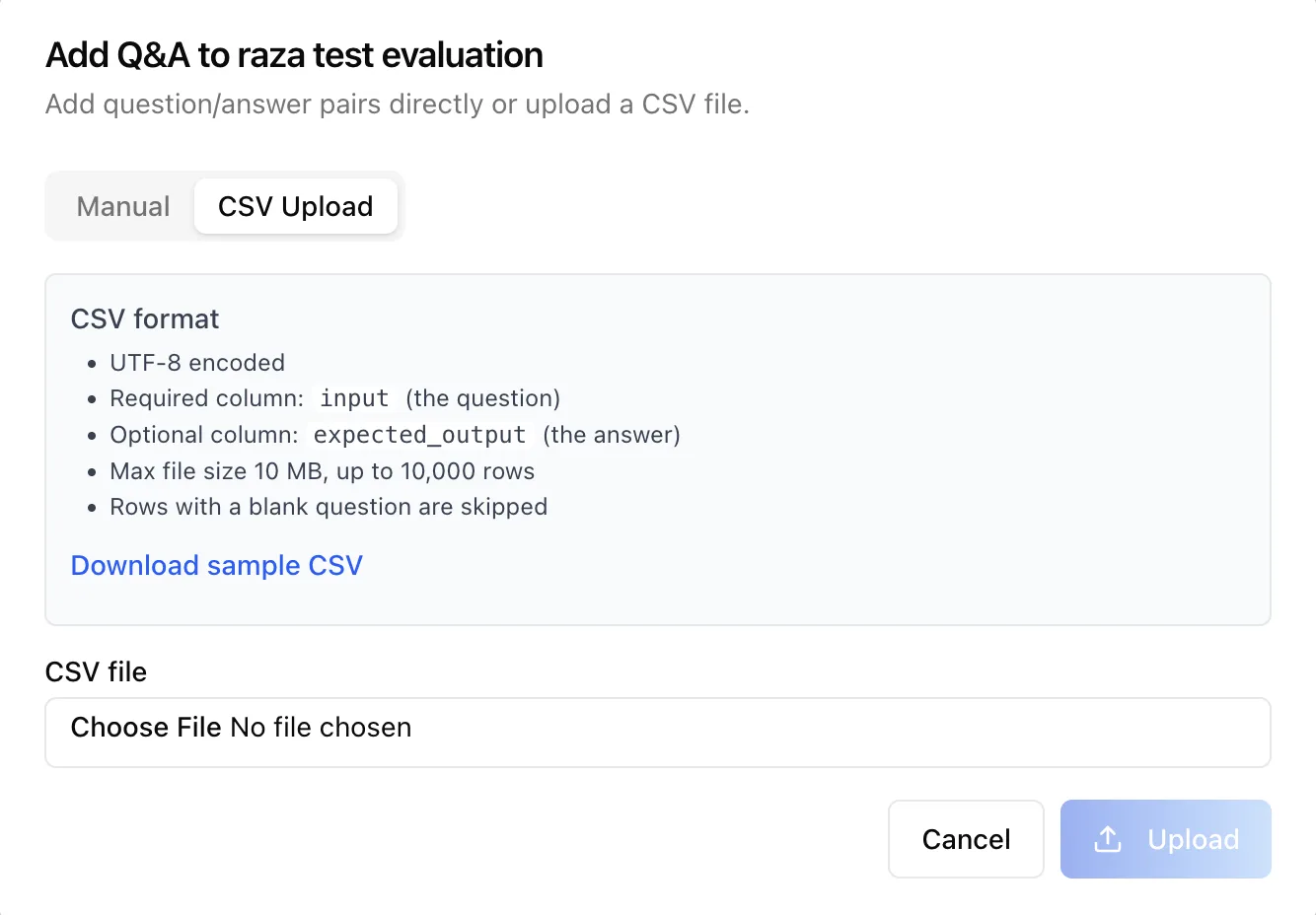
CSV upload
Upload a UTF-8 CSV with a required input column and an optional expected_output column, up to 10 MB or 10,000 rows. Rows with a blank question are skipped.
The benchmark selector picks the first available benchmark automatically, and New Evaluation stays disabled until at least one benchmark exists — so creating a benchmark is the first step on a new agent.
Reviews (LLM-as-Judge)
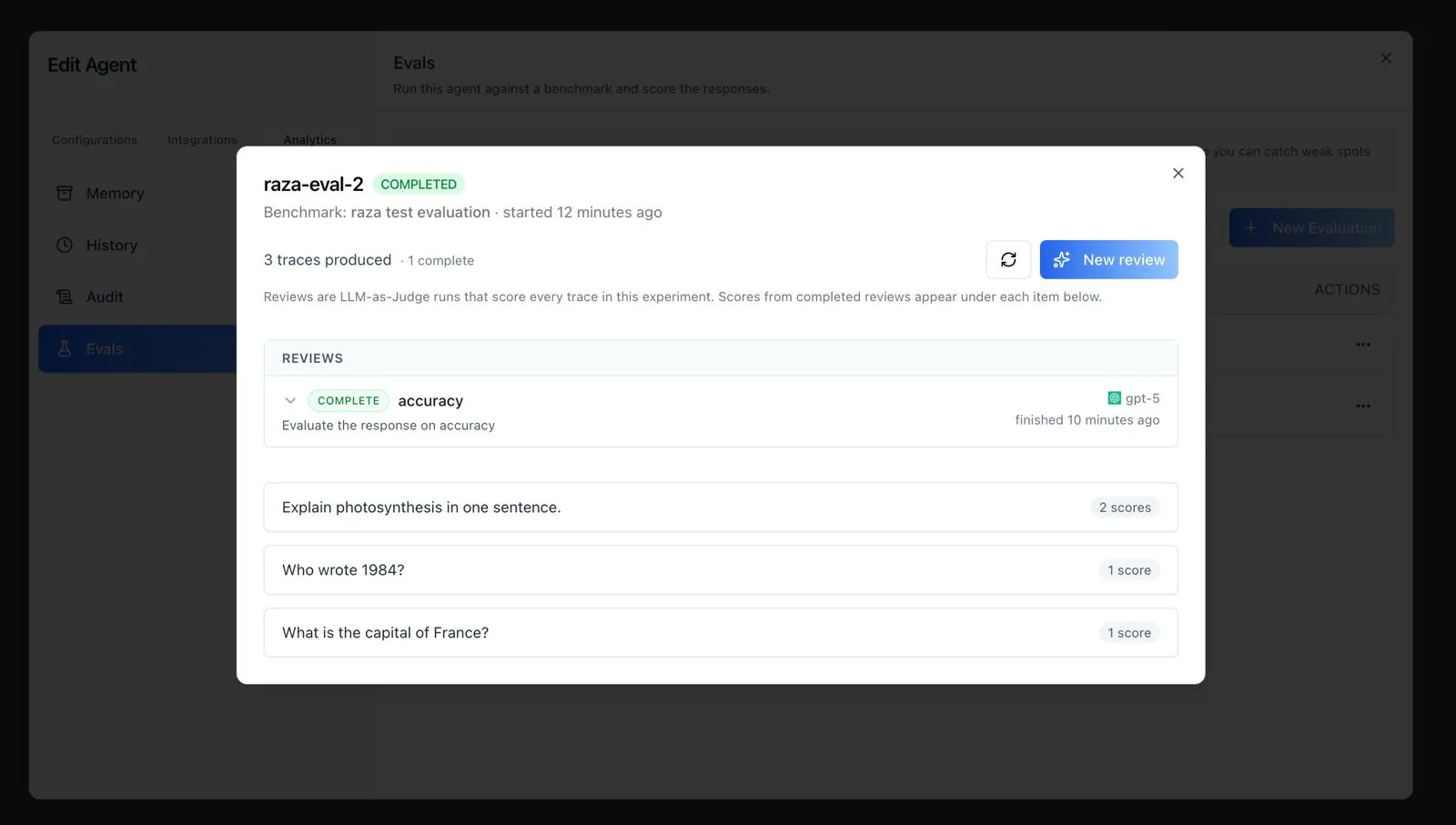
Opening a completed run shows its header — benchmark name, when it started, and how many traces it produced — above a Reviews section. As the panel explains: "Reviews are LLM-as-Judge runs that score every trace in this experiment. Scores from completed reviews appear under each item below."
A review grades every response in the run automatically. Selecting New review defines a criteria rubric in plain language (for example, "Evaluate the response on accuracy") and picks the judge model; a separate LLM then reads each item's input, expected output, and the agent's actual output and assigns a score. Each review shows its status, the judge model that ran it (for example, gpt-5), and when it finished. Completed review scores roll up under each benchmark item, so an item can carry several scores from different reviews.
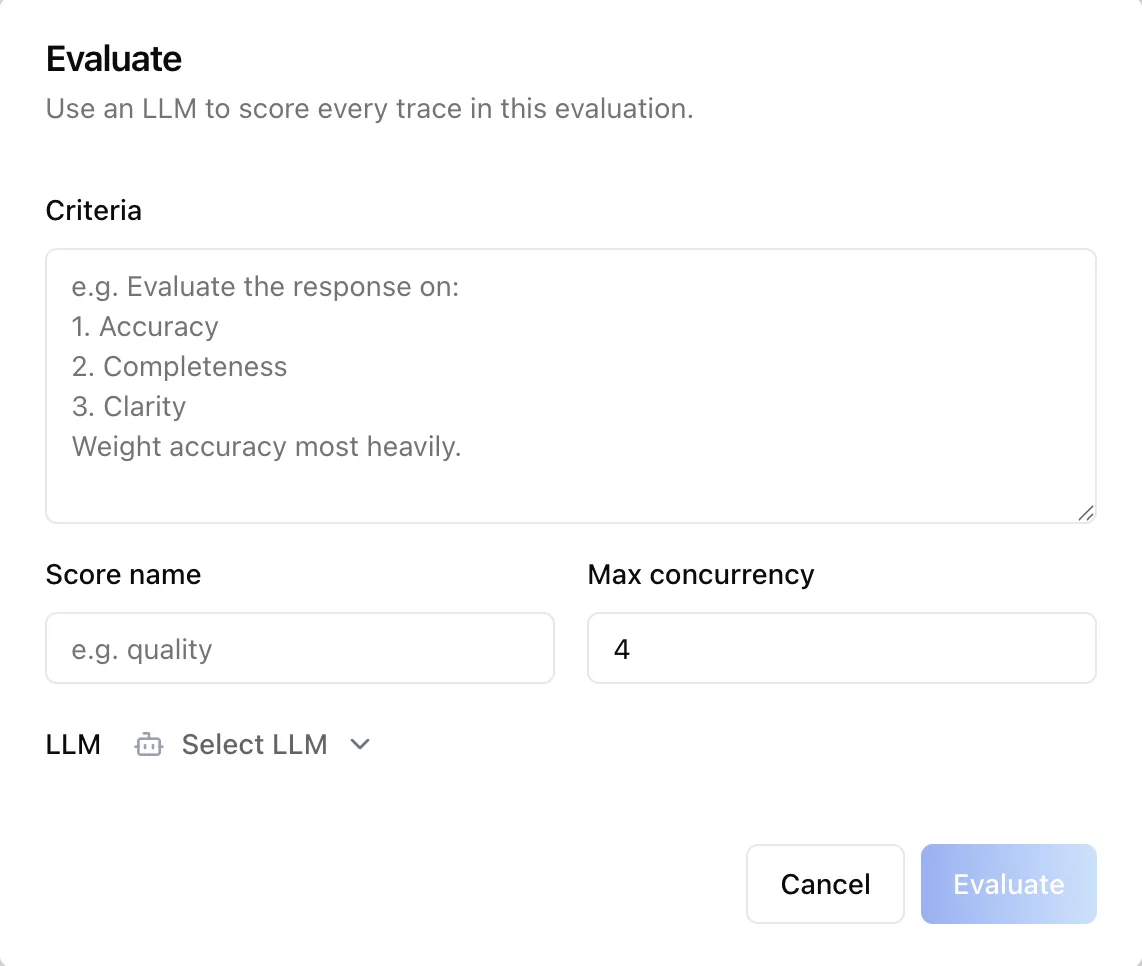
The Evaluate dialog collects the criteria, a score name (the label the resulting scores are filed under, such as accuracy), a max concurrency limit for how many traces are judged in parallel, and the judge model.
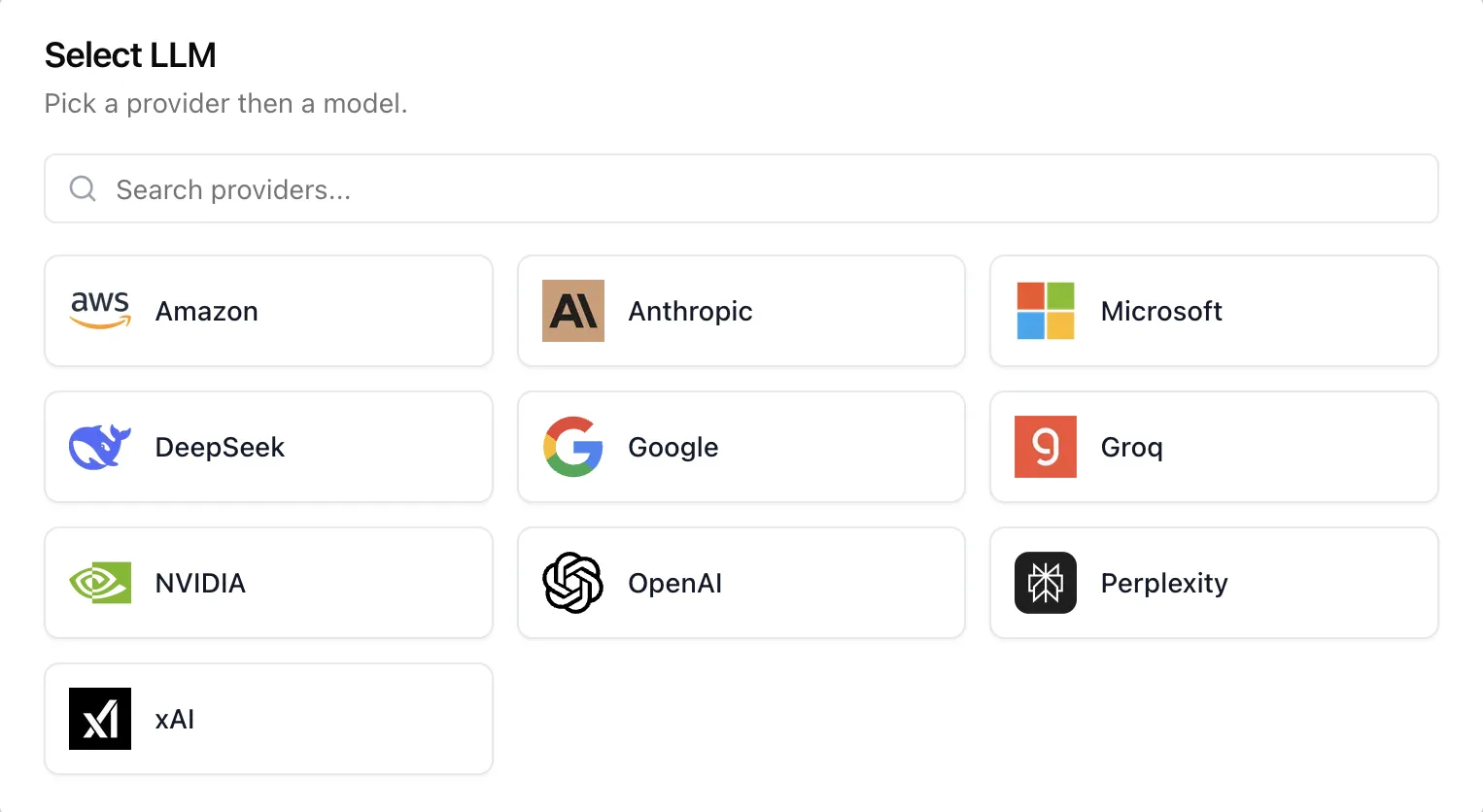
The model is chosen provider-first: pick the provider, then one of its models. Any LLM configured for your organization can act as the judge — including a model different from the one the agent itself runs on, which is the usual setup for an independent second opinion.
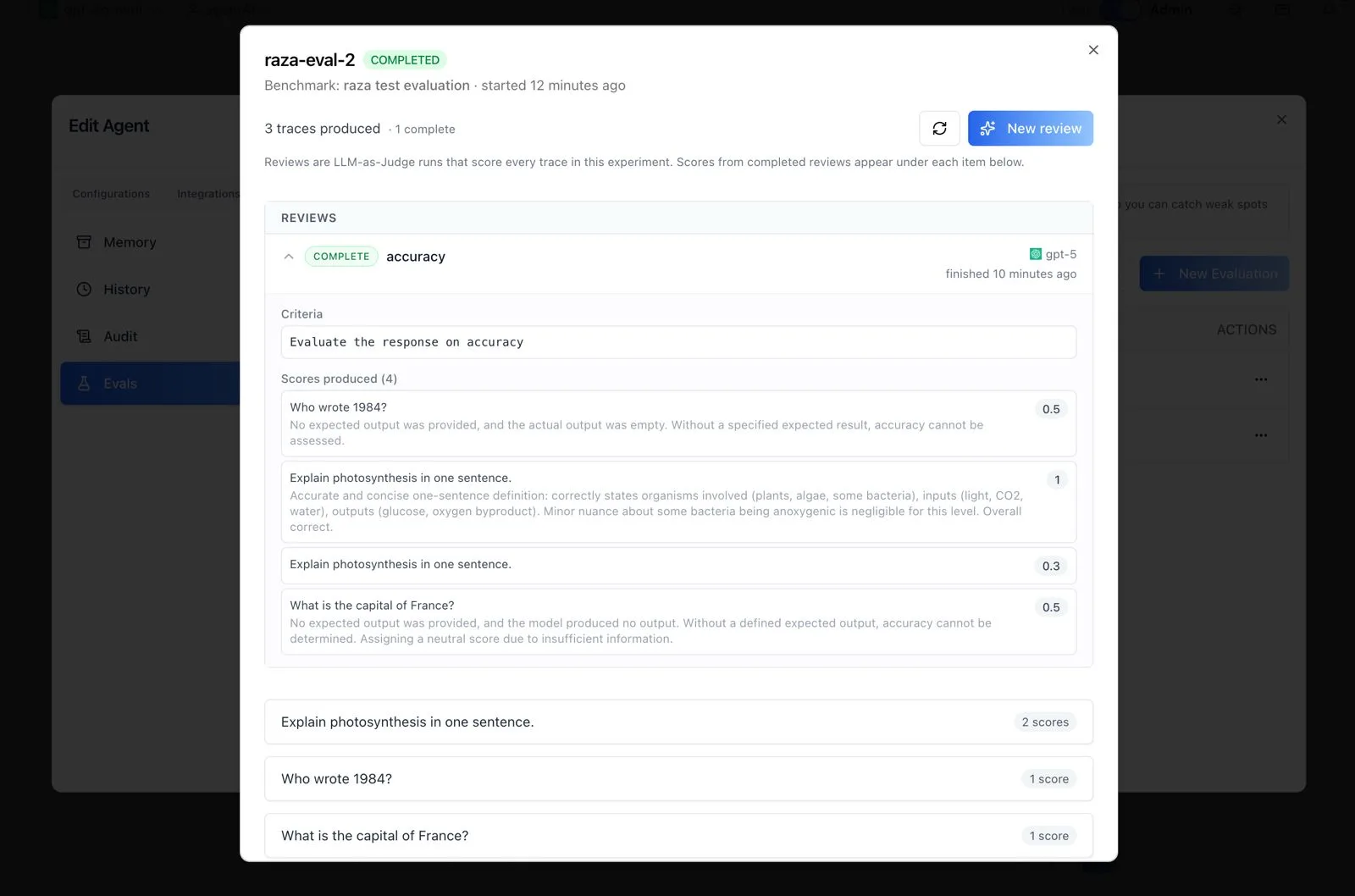
Expanding a review reveals its Criteria and the scores produced — one per benchmark item, each with a numeric value and the judge's written reasoning. In the example above, the accuracy review explains why a clear, correct answer earned a full score while an empty or unanswerable response received a lower, neutral one. Reviews are the automated grading path; individual human, numeric, boolean, or categorical annotations can also be attached to any trace, and reusable rubrics can be saved and referenced across runs.
Scores can also be added by hand from a trace. A manual score takes a name, a value between 0 and 1, and an optional comment, and sits alongside the judge's scores on the same item. Score writes are ingested asynchronously, so a freshly added score appears immediately in the open panel and is confirmed on the next refresh.
Programmatic Access
Everything in this panel is available over the platform API, so evaluations can run in CI or from an AI agent: create benchmarks and items (JSON, CSV upload, or from chat traces), start experiment runs, launch LLM-as-Judge reviews, read scores, and export CSV. The API is packaged as the iblai-api-agent-eval skill at github.com/iblai/vibe.
Building Evals Into Your Own App
The Evals panel is one of the agent-settings tabs published in the ibl.ai SDK, so the same screen can be mounted in a product you build yourself. Install the iblai/vibe skills and mount <AgentEvaluationTab> from @iblai/iblai-js/web-containers/next inside an AgentSettingsProvider. It handles benchmarks, runs, reviews, scores, export, and delete on its own; the host supplies a getLLMProviderDetails function so the judge picker can show provider logos and display names. The reusable skill for this workflow is iblai-vibe-agent-evals, and the SDK overview is at Vibe SDK.
Related
- Agent Settings: Analytics — usage reports and dashboards for the agent
- Agent Settings: Chat History — the raw conversation traces evaluations can be seeded from
- Agent Settings: Datasets — the RAG documents that ground the agent (distinct from evaluation benchmarks)