Downloading a Canvas
Overview
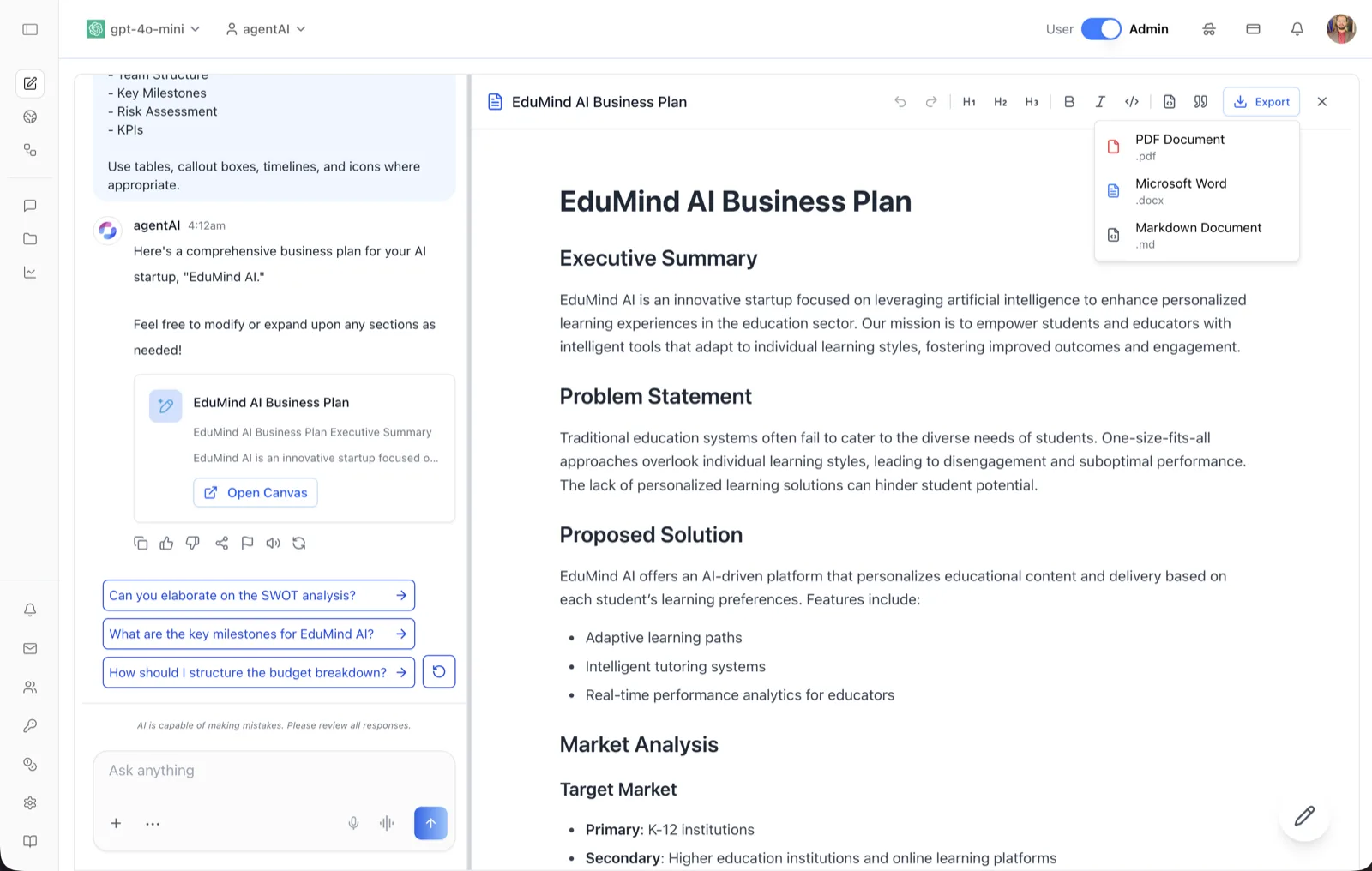
Every Canvas document can be downloaded in three formats — PDF, Microsoft Word, and Markdown — from the Export button in the Canvas header. The export always captures the version of the document currently displayed in the panel, including any manual edits you have made.
Exporting preserves the document's structure: headings, lists, tables, code blocks, and even mathematical notation are converted to a readable form in each target format. The file is named after the document's title, so renaming the Canvas first (see Renaming a Canvas) gives the download a clean filename.
The Export menu is available whenever a Canvas is open. It is disabled briefly while an export is being prepared ("Exporting…") or while an autosave is in flight.
Target Audience
User
Features
Export button
A blue button in the Canvas header that opens the format menu. While a download is being generated it shows a spinner and the label "Exporting…", and a "Preparing document..." overlay may appear on the document.
PDF Document (.pdf)
Renders the document — title, formatting, and layout — into a paginated PDF and downloads it as <title>.pdf. A "Document exported as PDF" confirmation appears when the file is ready.
Microsoft Word (.docx)
Converts the document into a Word-compatible file named <title>.docx, with the document title as a heading. Confirmed by "Document exported as DOCX".
Markdown Document (.md)
Downloads the document's markdown source as <title>.md — the most portable format for pasting into wikis, repositories, or other editors. Confirmed by "Document exported as Markdown".
Current-view export
The export uses the content currently shown in the editor. If you are viewing a previous version, that version is what downloads — a simple way to export an older draft without restoring it.
How to Use
Step 1: Open the document
Click Open Canvas on the document's preview card in chat so the Canvas panel is showing the content you want to download.
Step 2: Pick the version
If you want an older draft, navigate to it with the version menu next to the title. Otherwise stay on the latest version.
Step 3: Export
Click Export in the Canvas header and choose PDF Document, Microsoft Word, or Markdown Document. The file downloads through your browser, and a toast confirms the export.