Agent Settings: Skills
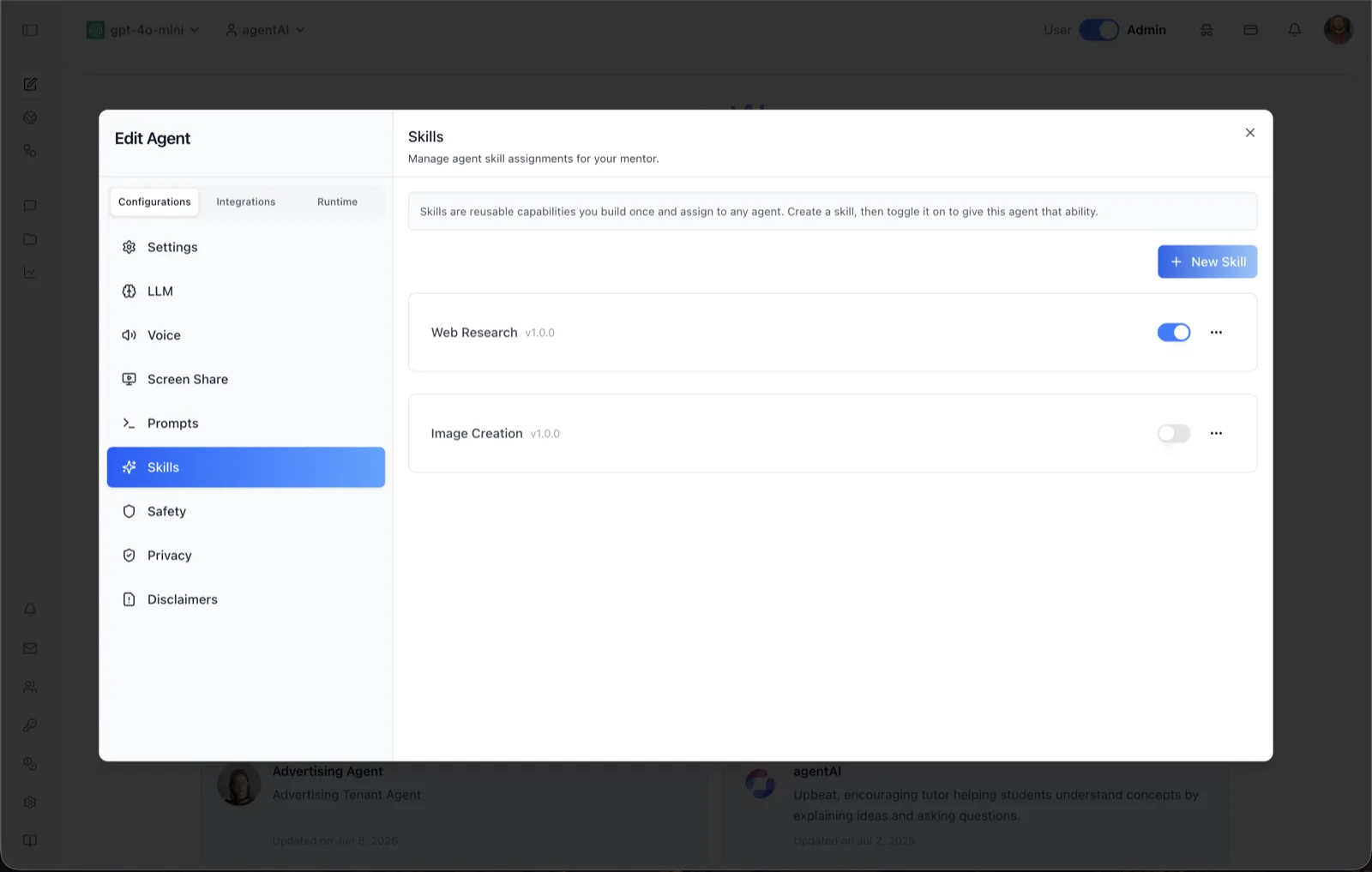
Overview
The Skills panel manages Agent Skills — reusable playbooks a Base Agent can discover and follow. A skill is a written instruction bundle (plus optional reference files) for one job, such as researching a topic on the web or reviewing code. The agent reads a skill only when it is relevant, so an agent can carry many capabilities without bloating every conversation.
The panel header reads: "Reusable playbooks this Base Agent can discover and follow." The panel is split into two tabs — Agent Skills (the set this agent carries, with enable/disable toggles) and Available Skills (the organization's full catalog, with one-click Add to Agent) — plus New/Edit Skill dialogs and a Resources file manager for attaching files to a skill.
Skills are managed independently of the Claw sandbox: no sandbox instance is required for the panel to work. In chat, users invoke a skill by typing / in the composer.
To reach this screen, open the Edit Agent modal, stay on the Configurations tab group, and select Skills in the left sidebar.
Agent Skills apply to Base Agent agents only. On other agent types the tab is not offered.
Target Audience
Administrator | Agent Builder
Panel Reference
Session behavior note
An info line at the top of the panel states: "Skills added or removed here apply to new chat sessions only. Edits to a skill's instructions apply immediately, including in conversations already in progress." Plan changes accordingly — attaching a skill mid-conversation will not affect that conversation.
New Skill
Opens the skill-creation dialog (see New Skill dialog below). Available from either tab.
Agent Skills tab
The agent's effective set: the skills assigned to it plus its own private skills, deduped by slug. Each row shows the skill's name, version, badges (category, Native, Featured, Private), and description, followed by an enable toggle and a kebab ("...") menu.
Available Skills tab
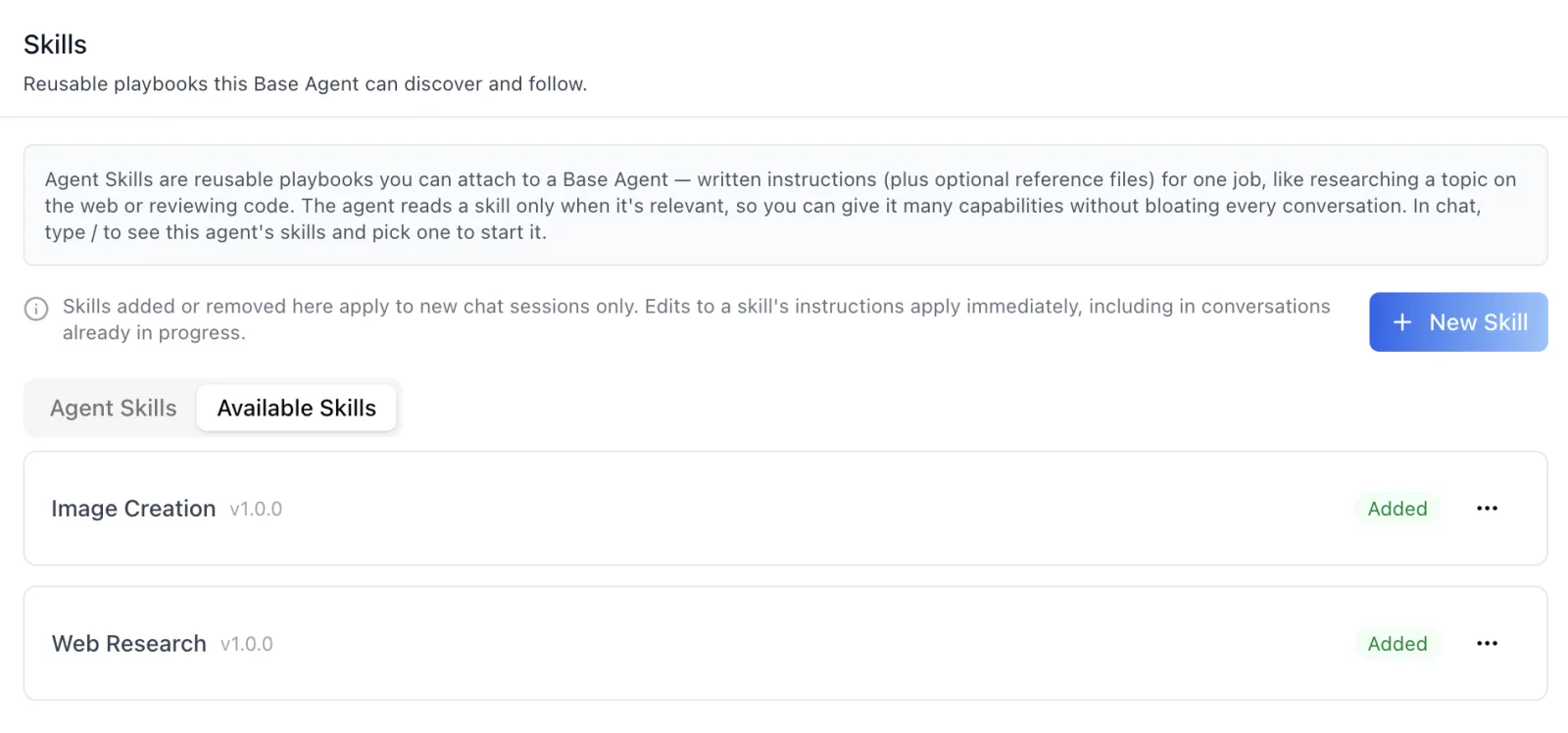
The organization's full skill catalog, paged 10 at a time. Rows show the same name/version/badges/description block. Add to Agent attaches a skill to this agent; rows already covered by the agent's set — attached, or shadowed by a private skill with the same slug — show a green Added chip instead. Another agent's private skills are not attachable.
Enable toggle
Turns a skill on or off for this agent. A skill is active only when both the skill itself and its assignment to this agent are enabled, and only enabled skills appear in the chat / picker.
Kebab ("...") menu
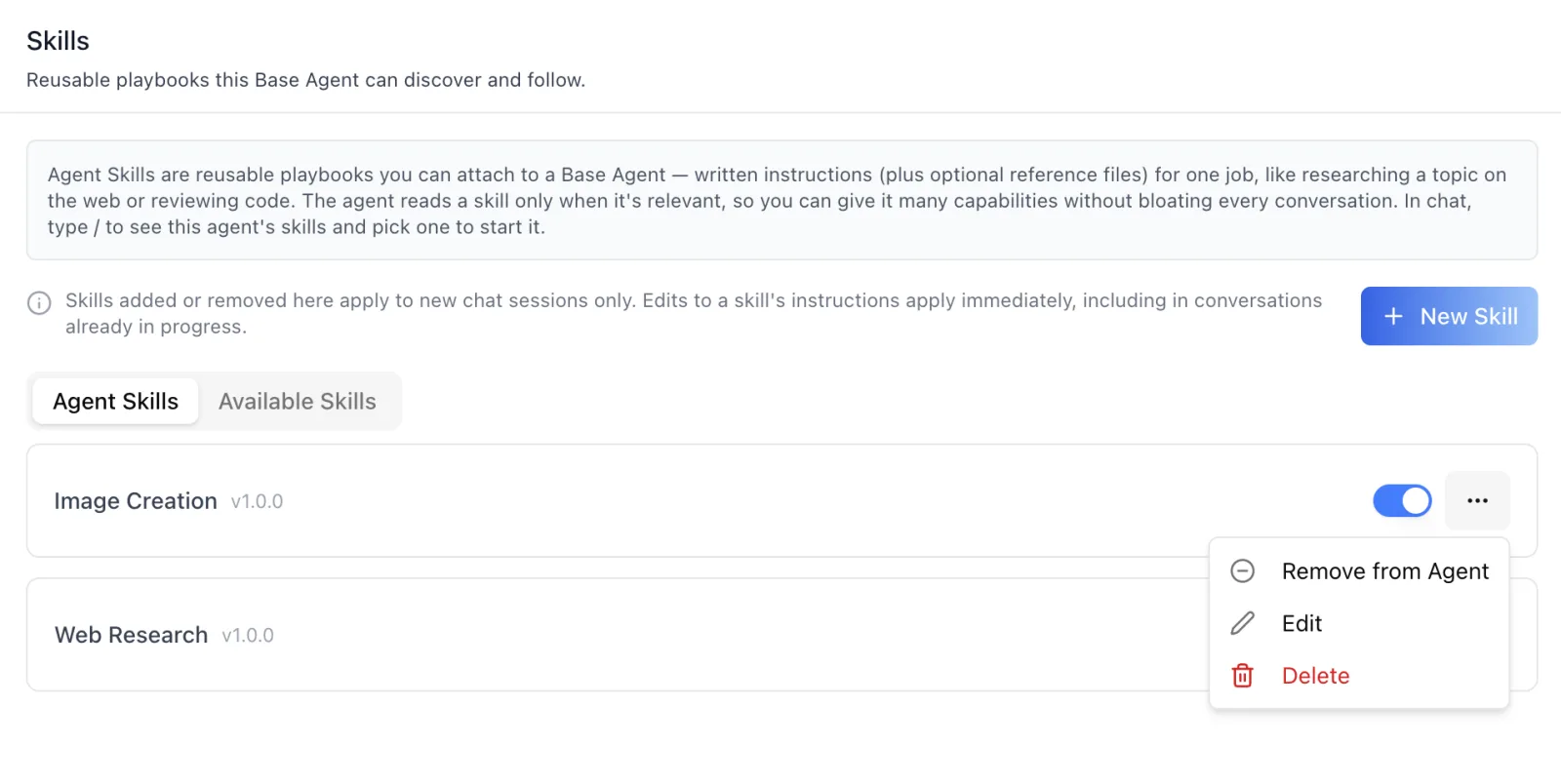
Per-row actions: Remove from Agent detaches the skill from this agent (shown for assigned skills); Edit opens the Edit Skill dialog; Delete removes the skill from the organization. Edit and Delete appear only for skills your organization owns — Featured skills are read-only and their edit and delete actions are hidden.
New Skill dialog
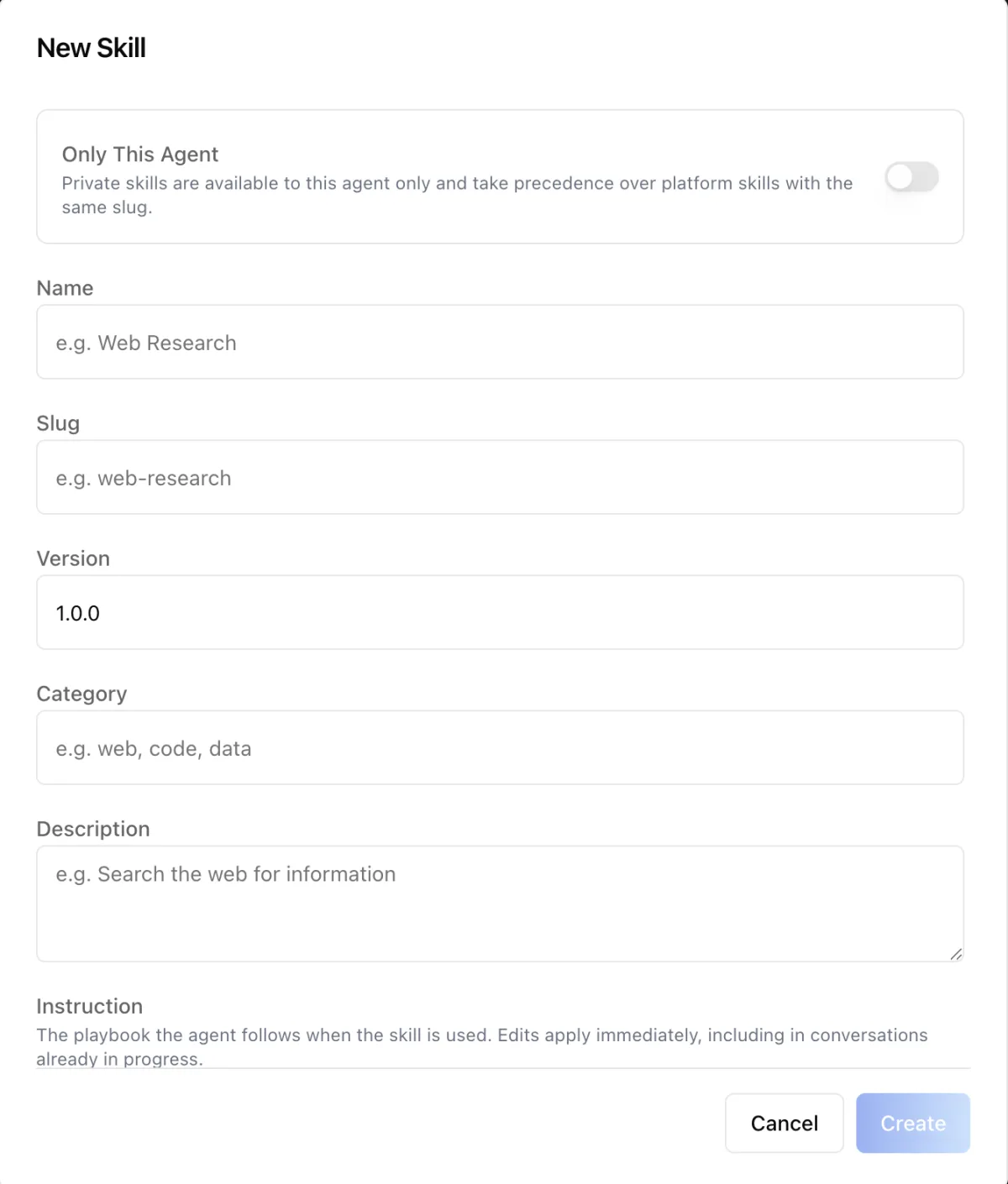
- Only This Agent — "Private skills are available to this agent only and take precedence over platform skills with the same slug." Leave it off to create a skill the whole organization can use.
- Name and Slug are required. The slug is what users type after
/in chat. - Version defaults to
1.0.0; Category (for example web, code, data) and Description are optional. - Instruction is the playbook the agent follows when the skill is used. Edits to it apply immediately, including in conversations already in progress.
Edit Skill dialog — General
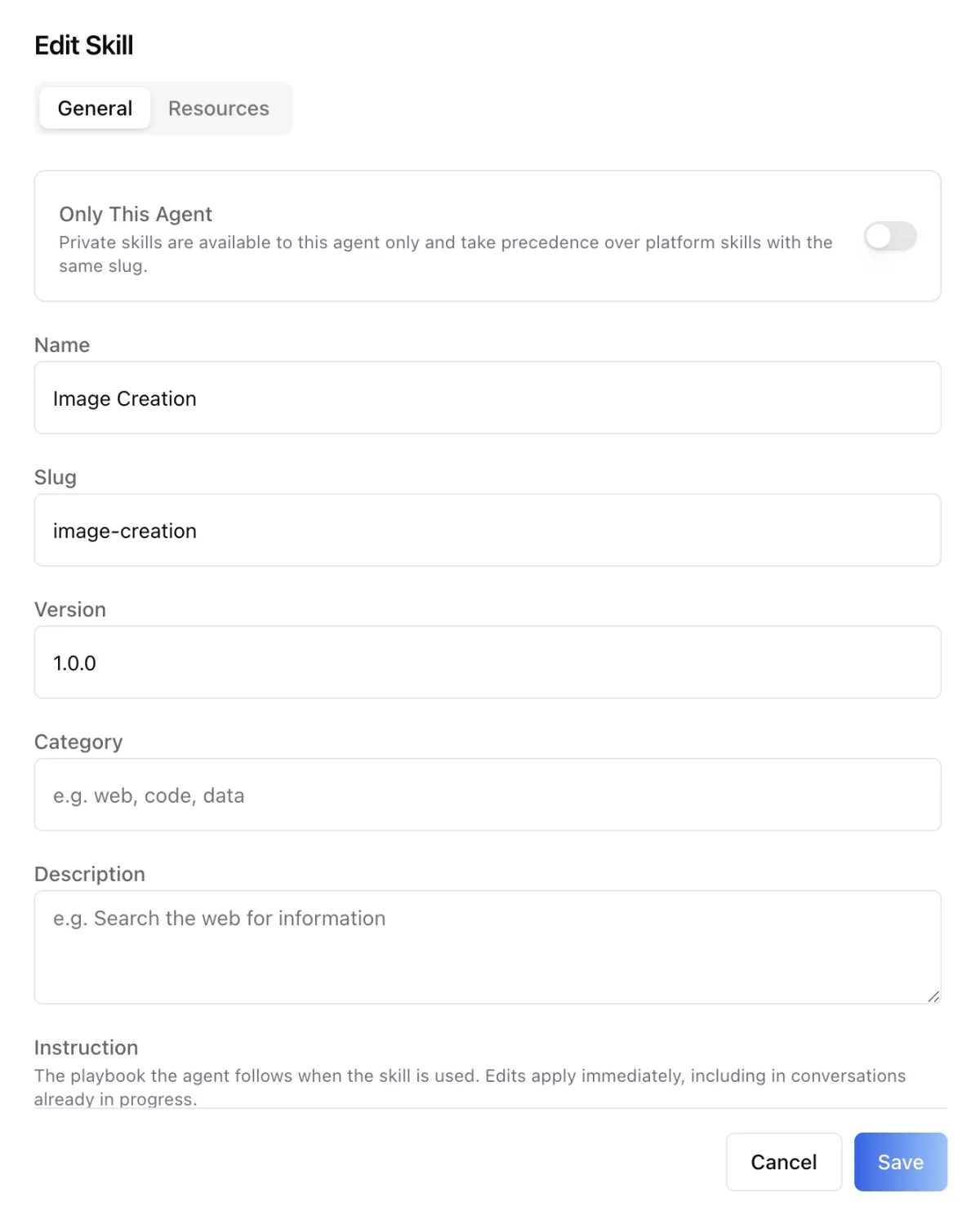
The same fields as New Skill, pre-filled, under a General / Resources tab pair. Save writes the change organization-wide, not just for this agent.
Edit Skill dialog — Resources
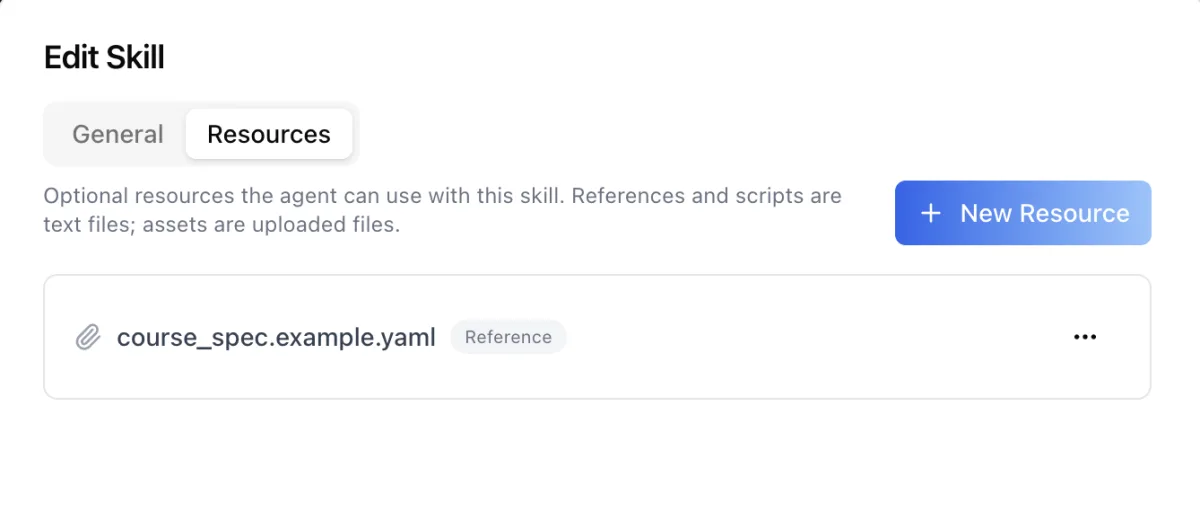
Optional files the agent can use with the skill, attachable after the skill is created. Reference and Script resources are text files (filename plus content); Asset resources are uploaded binary files. Each row shows the filename and a type chip, with a kebab menu offering Download (assets), Edit (text files), and Delete.
Chat / skill picker
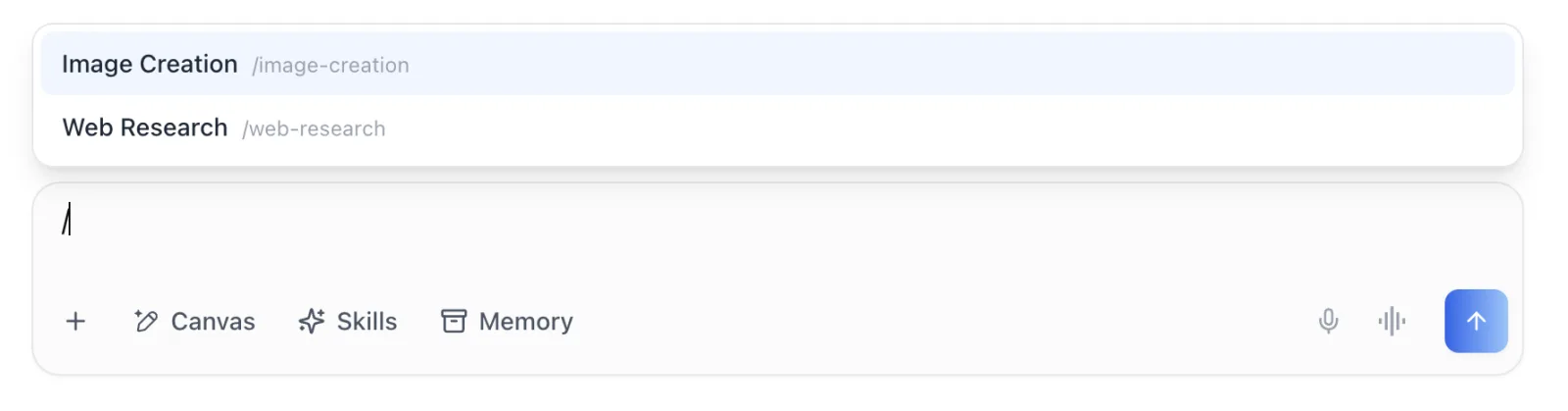
In chat, typing / as the first word of a message opens a picker listing this agent's enabled skills by name and /slug. Arrow keys browse, Enter or Tab selects and inserts /slug into the composer, and Esc dismisses it. See Chat Interface.
How to Use
Step 1: Open the Skills panel
Open the Edit Agent modal, keep Configurations selected, and click Skills in the sidebar.
Step 2: Attach skills from the catalog
Open the Available Skills tab and click Add to Agent on each skill this agent should carry. Skills already covered show a green Added chip.
Step 3: Create a skill (if needed)
Click New Skill, fill in at least Name and Slug, write the Instruction playbook, and save. Leave Only This Agent off to share the skill across the organization, or turn it on to keep it private to this agent.
Step 4: Attach files to a skill
Open the skill's Edit dialog, switch to Resources, and click New Resource. Add references and scripts as text, or upload assets as files.
Step 5: Enable, disable, and detach
Use the toggle on the Agent Skills tab to turn a skill on or off for this agent, or Remove from Agent in the kebab menu to detach it entirely. Remember that Edit and Delete apply organization-wide.
Step 6: Use the skill in chat
Start a new chat session with the agent, type /, and pick the skill from the list. Additions and removals apply to new sessions only; instruction edits take effect immediately.