API Keys
Overview
API keys are secret credentials that authenticate programmatic calls to the ibl.ai platform. Use them to call an agent from your own apps, build the platform into a product or workflow, or let scripts, backends, and integrations authenticate against the platform API on behalf of your organization.
There is one API-key backend, and the same keys can be created and managed from two places in the UI. The keys, their permissions, and their behavior are identical regardless of where you generate them — the two panels are just different entry points into the same key store.
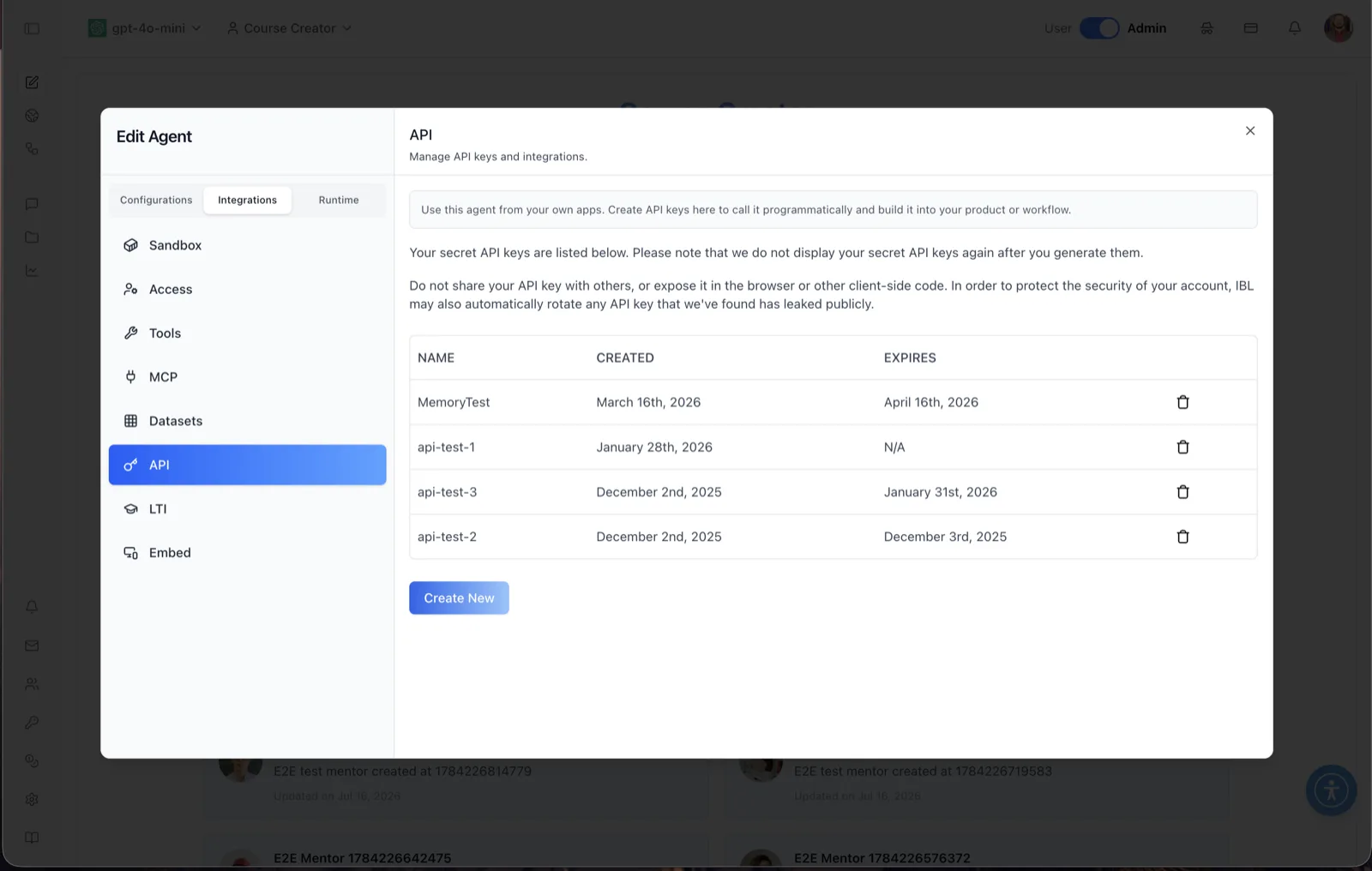
Keys are secret: the panel warns, "Your secret API keys are listed below. Please note that we do not display your secret API keys again after you generate them." It adds: "Do not share your API key with others, or expose it in the browser or other client-side code. In order to protect the security of your account, IBL may also automatically rotate any API key that we've found has leaked publicly."
Target Audience
Administrator | Developer
Where to Manage API Keys
You can create, view, and revoke API keys from either UI — both operate on the same organization-level key list.
From an agent (Integrations → API)
Open the Edit Agent modal, switch the tab group at the top of the sidebar from Configurations to Integrations, and select API. The intro banner frames the use case: "Use this agent from your own apps. Create API keys here to call it programmatically and build it into your product or workflow." Keys are managed at the platform (organization) level, so the same key list serves programmatic access for the organization's agents.
From organization settings (Integrations → APIs)
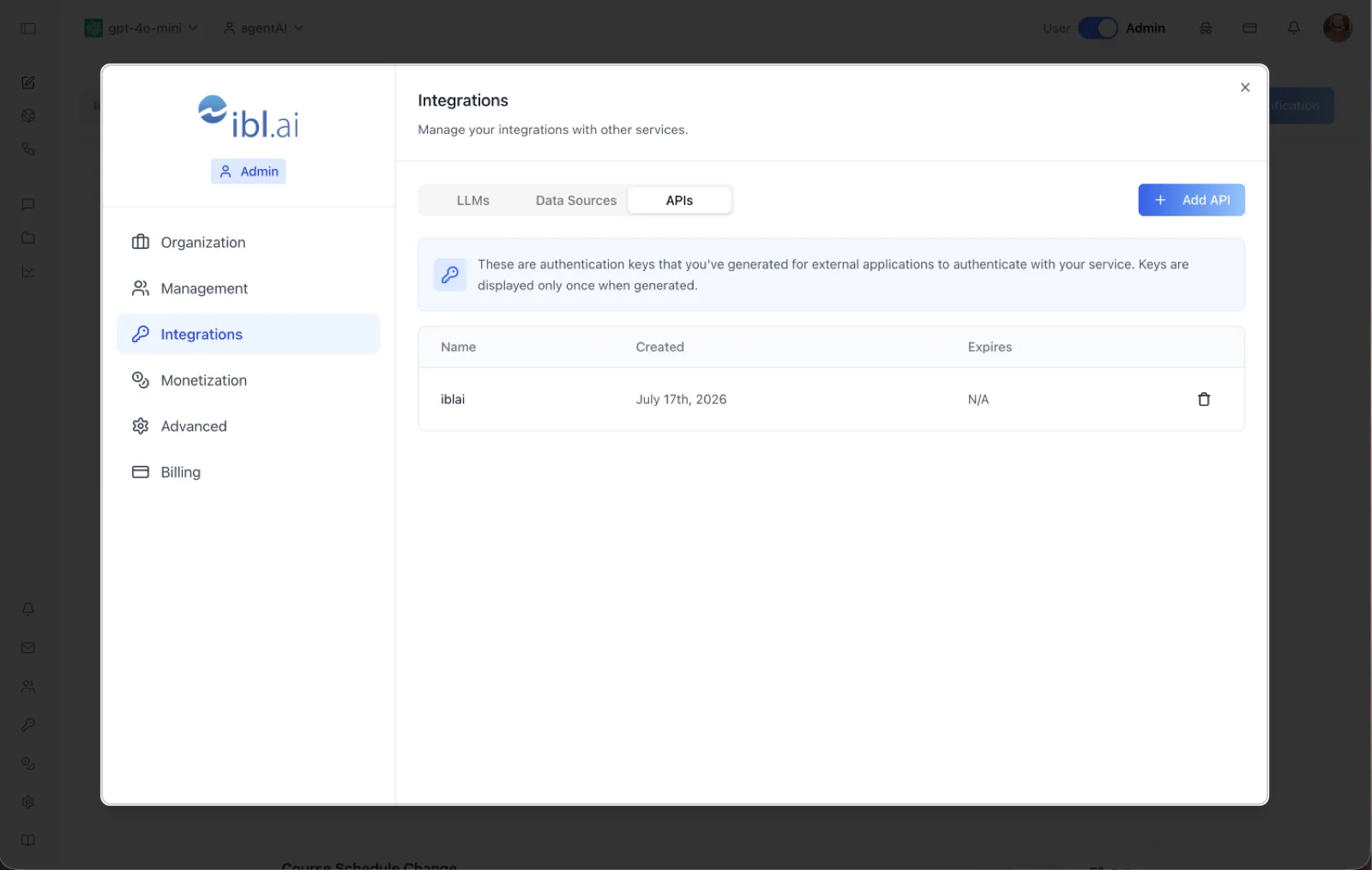
Switch the top-bar toggle to Admin, open the settings dialog, choose Integrations in the left sidebar, and select the APIs tab (alongside LLMs and Data Sources). The banner reads: "These are authentication keys that you've generated for external applications to authenticate with your service. Keys are displayed only once when generated." Unlike the LLMs and Data Sources tabs — which store outbound credentials for third-party services — the APIs tab issues inbound credentials that external applications present to authenticate against the platform API.
Settings Reference
API key table
A table listing existing keys with three data columns: NAME (the label given at creation, e.g. "MemoryTest", "api-test-1", "iblai"), CREATED (creation date, e.g. "July 17th, 2026"), and EXPIRES (expiry date, or "N/A" for keys with no expiration). Expired keys stop authenticating automatically. The key values themselves are never redisplayed after generation. Viewing the list requires the API-token list permission; without it the table reports "You do not have permission to view API keys."
Create key ("Create New" / "Add API")
Both panels open the same key-creation dialog — labeled Create New in the agent panel and Add API in organization settings. It has a required Name (use distinct names per consuming application so keys can be rotated independently) and an optional Expiration Date from a calendar picker. Leaving the date empty creates a non-expiring key. On creation, the full secret key is displayed once in a dialog so you can copy it — store it securely, because it cannot be retrieved again.
Delete (trash icon)
Each row ends with a trash button that opens a delete-confirmation dialog ("Are you sure you want to delete the API Key with the name …? This action cannot be undone."). Deleting a key immediately invalidates it for any integration still using it. The action is shown only to users with the API-token create/manage permission.
How to Use
Step 1: Open an API panel
Either open the Edit Agent modal → Integrations tab → API, or switch to Admin, open the settings dialog → Integrations → APIs tab. Both reach the same key list.
Step 2: Create a key
Click Create New (agent panel) or Add API (organization settings), give the key a descriptive name — for example, the app or workflow that will use it — optionally set an expiration date, and confirm.
Step 3: Copy and store the secret
Copy the generated key from the one-time display dialog and store it in a secrets manager or environment variable. It will not be shown again.
Step 4: Authenticate your app
Use the key server-side to authenticate programmatic calls to the platform API or a specific agent. Never embed it in browser or other client-side code.
Step 5: Rotate and clean up
Review the table's EXPIRES column periodically. To rotate without downtime, create a replacement key before deleting the old one. Delete keys you no longer use with the trash icon, and replace any key you suspect has leaked.