Agent Settings: Datasets
Overview
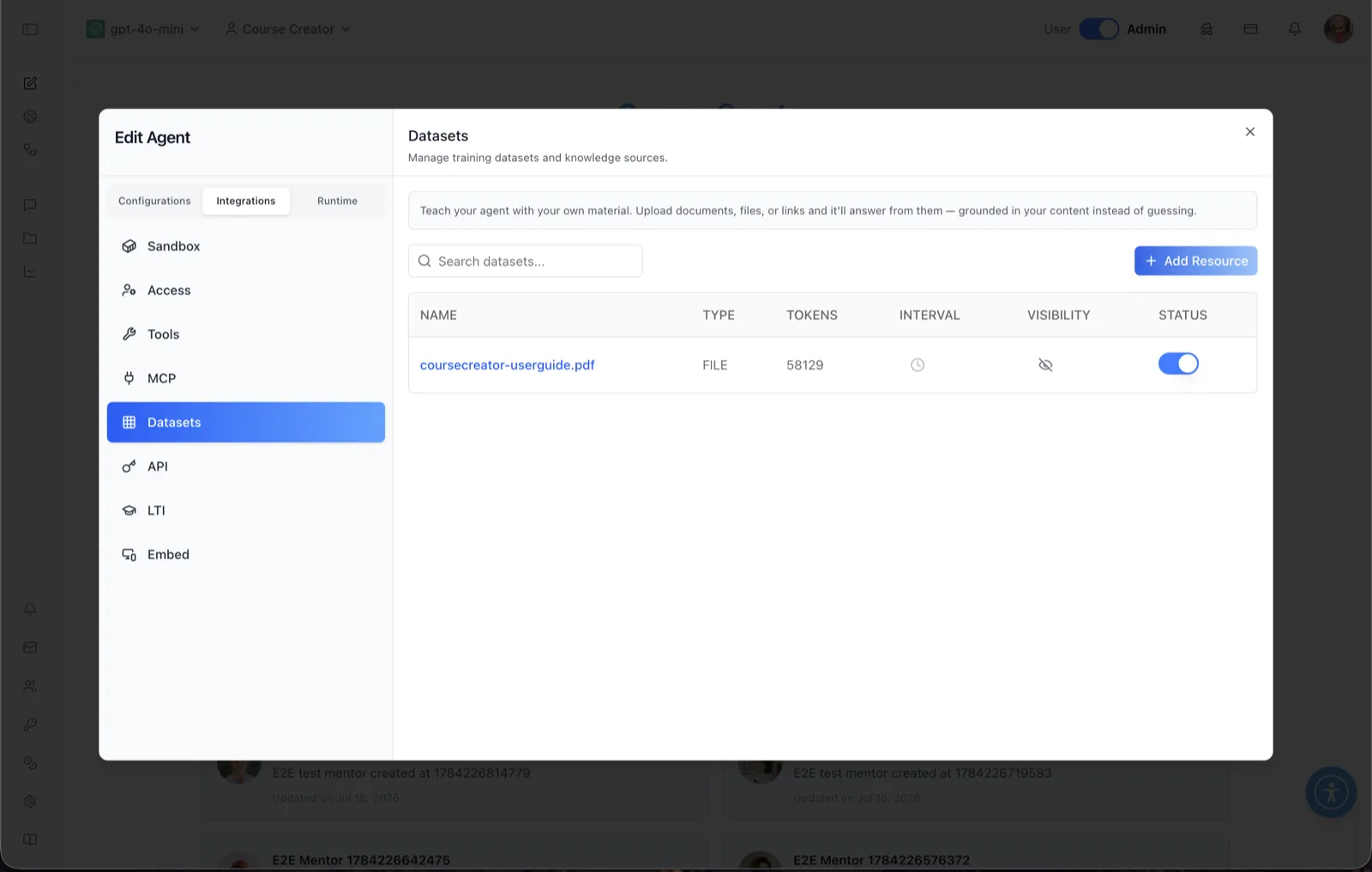
The Datasets panel manages the knowledge sources an agent is trained on. The panel header reads: "Manage training datasets and knowledge sources," and the helper text explains: "Teach your agent with your own material. Upload documents, files, or links and it'll answer from them — grounded in your content instead of guessing."
Every uploaded resource becomes a row in the datasets table with its name, type, token count, retraining interval, visibility, and training status. The screenshot shows one trained resource: coursecreator-userguide.pdf (type FILE, 58,129 tokens, training toggled on).
To reach this screen, open the Edit Agent modal, switch to the Integrations tab group, and select Datasets in the left sidebar.
Target Audience
Administrator | Agent Builder
Panel Reference
Search datasets
Filters the table by resource name as you type.
Add Resource
Opens the Add Resources modal ("Add knowledge to help your agent provide more relevant insights. Others with edit access can reuse these sources for more topics."). Supported resource types include file uploads (PDF, DOCX, PowerPoint, Excel, CSV, TXT, Markdown, ZIP, Audio, Video, Image), links and crawls (URL, Web Crawler, YouTube), cloud sources (Google Drive, Microsoft OneDrive, Dropbox, GitHub), and platform Courses.
NAME column
The resource's document name (or URL), rendered as a link that opens the underlying source in a new tab.
TYPE column
The resource's document type in uppercase — for example FILE, PDF, or URL.
TOKENS column
The number of tokens the resource contributed to the agent's knowledge base — a measure of how much content was ingested (58,129 for the user guide in the screenshot).
INTERVAL column
A clock button that opens the Schedule Retraining dialog for the resource. Presets are Daily (1 day), Weekly (7 days), and Monthly (30 days), plus a custom interval in days; the dialog confirms "Dataset will retrain every {days} days." Retraining re-ingests the source on that schedule so the agent stays current — useful for URLs and crawled sites. Resources that cannot be retrained show a "This document cannot be retrained" tooltip and the button is disabled.
VISIBILITY column
An eye button toggling the resource between private (eye-off icon, as in the screenshot) and public access. The actions are labeled "Make public" and "Make private" — public resources can be reused by others with edit access.
STATUS column
A switch controlling whether the resource is trained into the agent's knowledge base. Toggled on (as in the screenshot), the content is active; while training runs, the row reports an "In Progress" state. Toggling off untrains the document, and the panel then offers to keep or delete it.
How to Use
Step 1: Open the Datasets panel
Open the Edit Agent modal, click the Integrations tab group, then select Datasets.
Step 2: Add a resource
Click Add Resource, pick the resource type (file upload, URL, web crawl, cloud drive, GitHub, YouTube, or a platform course), and provide the file or link. The resource is ingested and appears in the table with its token count.
Step 3: Verify training status
Check the STATUS switch is on so the resource is part of the agent's knowledge base. Watch for the "In Progress" state to finish after ingestion.
Step 4: Schedule retraining (optional)
For sources that change over time, click the clock icon in INTERVAL and choose Daily, Weekly, Monthly, or a custom number of days.
Step 5: Control visibility
Use the eye icon to make a resource public (reusable by others with edit access) or keep it private to this context.