Agent Settings: Voice Selector
Overview
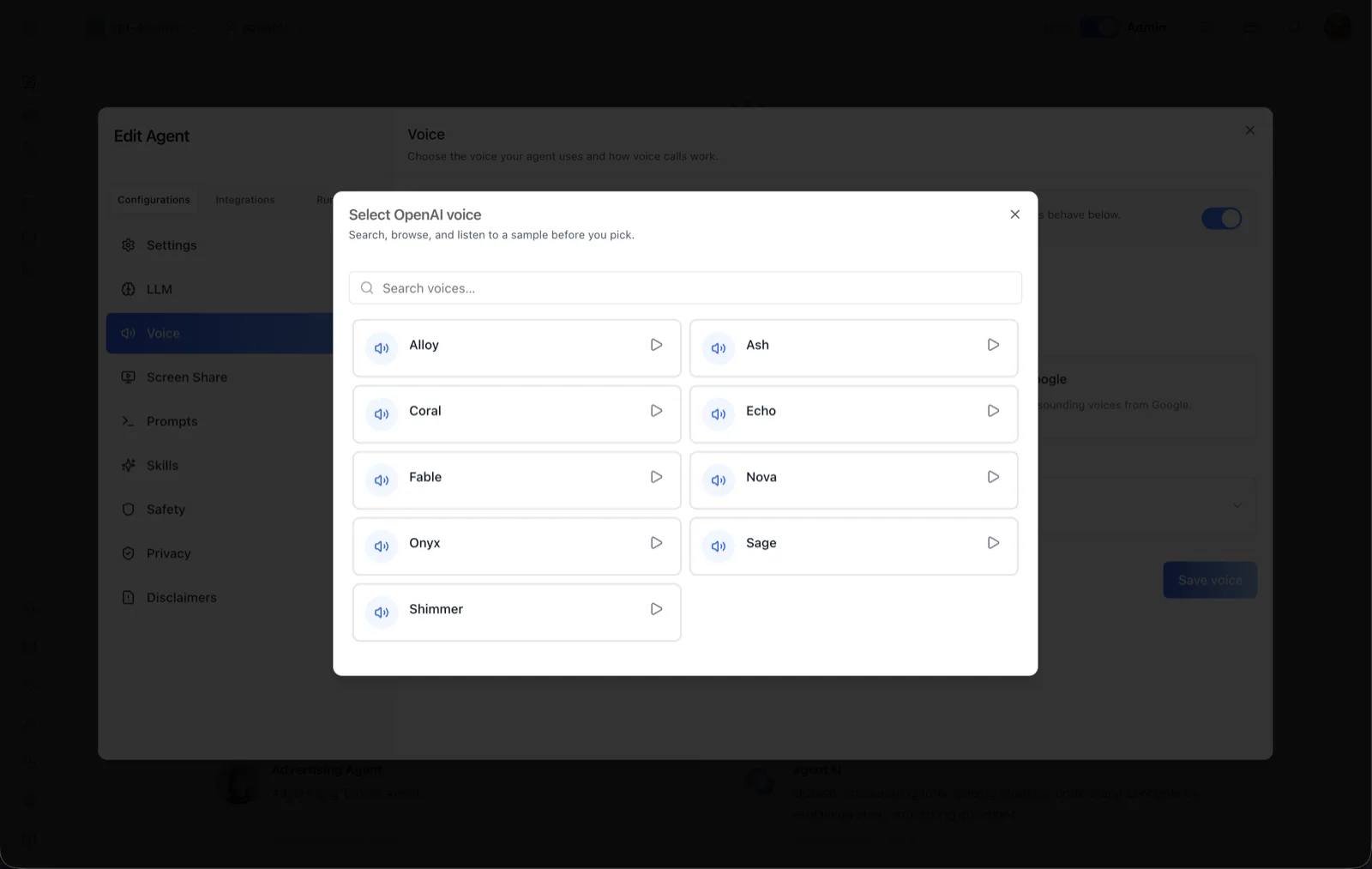
The voice selector is a modal dialog for choosing the specific voice an agent speaks with. It opens when you click Select a voice on the Voice panel of the Edit Agent modal, after picking OpenAI or Google as the voice source. The dialog title reflects the active source — "Select OpenAI voice" in the screenshot.
Its subtitle summarizes the workflow: "Search, browse, and listen to a sample before you pick." Every voice row includes an inline play button so you can audition a voice before committing to it.
To reach it, open the Edit Agent modal, select Voice in the Configurations sidebar, choose the OpenAI or Google voice source on the Voice sub-tab, then click the Select a voice field. The same picker is used for the call voice on the Voice call sub-tab once an AI provider is chosen.
Target Audience
Administrator | Agent Builder
Dialog Reference
Search voices
A search input at the top ("Search voices...") filters the list as you type. Typing is debounced (about 300 ms), so results update shortly after you stop typing. Long voice lists are paginated, which matters most for the larger Google catalog.
Voice list
Voices display as a two-column grid of rows, each showing a speaker icon and the voice name. For the OpenAI source, the visible voices are Alloy, Ash, Coral, Echo, Fable, Nova, Onyx, Sage, and Shimmer. Rows behave as a radio group — clicking a row selects that voice, and only one voice can be selected at a time.
Play (preview) buttons
Each row carries a play button on its right edge. Clicking it plays a short audio sample of that voice without selecting it, so you can compare several voices before picking one.
Close button
The X in the top-right corner dismisses the dialog without changing the current selection.
How to Use
Step 1: Open the picker
On the Voice panel (Configurations → Voice), select the OpenAI or Google voice source and click Select a voice.
Step 2: Find a voice
Browse the list or type a name into Search voices... to filter it.
Step 3: Listen to samples
Click the play button next to any voice to hear how it sounds. Repeat for a few candidates to compare.
Step 4: Select and save
Click the voice row you want — it becomes the selected voice and the picker's trigger on the Voice panel will show its name. Back on the Voice panel, click Save voice to persist the choice.