Agent Settings: Safety
Overview
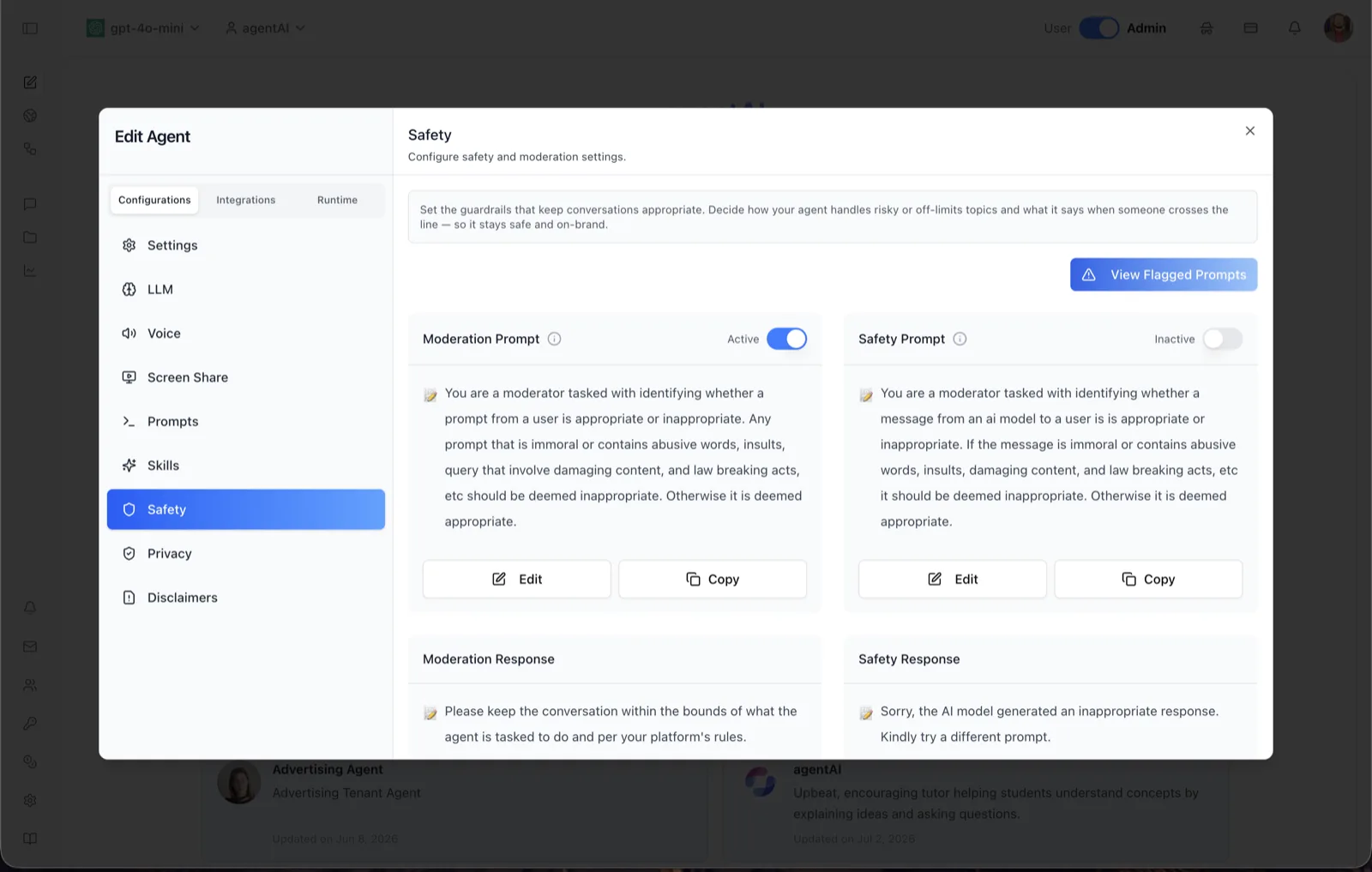
The Safety panel configures the moderation guardrails for an agent. Its description reads: "Configure safety and moderation settings," and the intro banner explains the intent: "Set the guardrails that keep conversations appropriate. Decide how your agent handles risky or off-limits topics and what it says when someone crosses the line — so it stays safe and on-brand."
Two independent checks are configured here. The Moderation Prompt screens incoming user prompts for inappropriate content, and the Safety Prompt screens the AI model's own messages before they reach the user. Each has a companion response — the message shown in chat when content is flagged.
To reach this panel, open the Edit Agent modal, stay on the Configurations tab group, and select Safety in the left sidebar.
Target Audience
Administrator | Agent Builder
Settings Reference
View Flagged Prompts
A button in the top-right that opens the Flagged Prompts modal — a review surface for prompts the moderation system has flagged, with a summary, filters, a paginated list, per-prompt detail, and the ability to delete individual moderation log entries. The button only appears for users whose role grants the view-moderation-logs permission on the agent.
Moderation Prompt
The instruction given to the moderation check that classifies user prompts as appropriate or inappropriate. The default text reads: "You are a moderator tasked with identifying whether a prompt from a user is appropriate or inappropriate. Any prompt that is immoral or contains abusive words, insults, query that involve damaging content, and law breaking acts, etc should be deemed inappropriate. Otherwise it is deemed appropriate." An Active/Inactive toggle in the card header enables or disables moderation for the agent; the tooltip notes it "Controls Content Moderation."
Safety Prompt
The instruction for the check that classifies AI model messages before they are shown to the user. The default text reads: "You are a moderator tasked with identifying whether a message from an ai model to a user is is appropriate or inappropriate. If the message is immoral or contains abusive words, insults, damaging content, and law breaking acts, etc it should be deemed inappropriate. Otherwise it is deemed appropriate." Its own Active/Inactive toggle enables or disables the safety system; the tooltip notes it "Controls Safety Filtering."
Moderation Response
The message shown in chat when a user prompt is flagged. Default: "Please keep the conversation within the bounds of what the agent is tasked to do and per your platform's rules."
Safety Response
The message shown when the AI model's output is flagged. Default: "Sorry, the AI model generated an inappropriate response. Kindly try a different prompt."
Edit and Copy
Every card has an Edit button that opens a prompt editor for that text, and a Copy button that copies the current text to the clipboard. Changes save to the agent's settings immediately on confirmation, and controls are disabled for users without edit permission on the corresponding field.
How to Use
Step 1: Open the Safety panel
Open the Edit Agent modal, keep Configurations selected, and click Safety in the sidebar.
Step 2: Enable the checks you need
Use the Active/Inactive toggle on the Moderation Prompt card to screen user prompts, and the toggle on the Safety Prompt card to screen AI responses. The two operate independently.
Step 3: Tailor the prompts
Click Edit on either prompt card to adjust what counts as inappropriate for this agent — for example, adding topics that are off-limits for your organization. Save the editor to apply.
Step 4: Customize the user-facing responses
Click Edit on the Moderation Response or Safety Response cards to change the message users see when content is flagged, keeping it consistent with your brand's tone.
Step 5: Review flagged activity
Click View Flagged Prompts to audit what has been flagged, filter the list, inspect individual prompts, and delete log entries where appropriate.