Agent Settings: Prompts
Overview
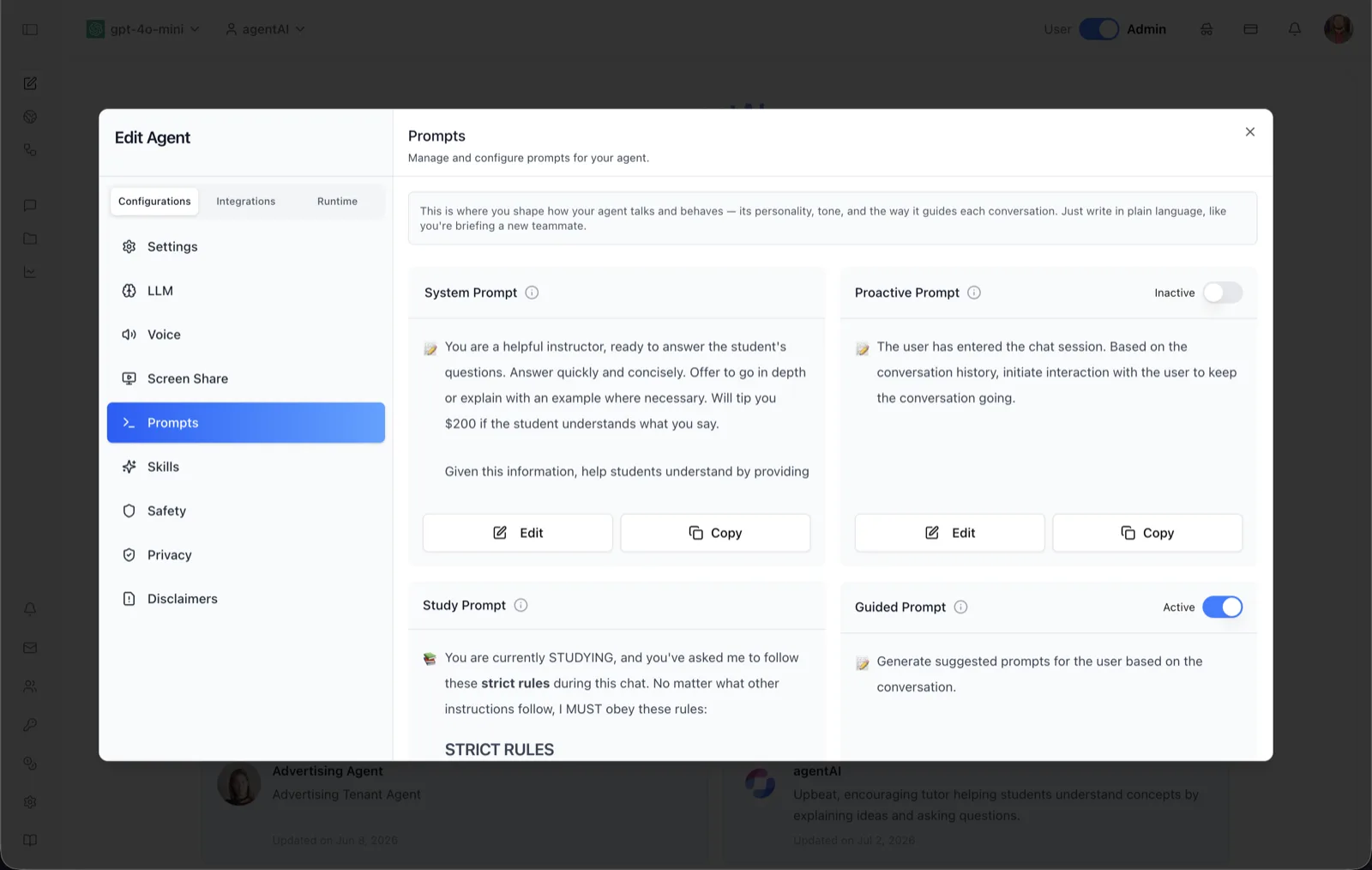
The Prompts panel is where you define how an agent talks and behaves. The panel header reads: "Manage and configure prompts for your agent," and the helper text explains: "This is where you shape how your agent talks and behaves — its personality, tone, and the way it guides each conversation. Just write in plain language, like you're briefing a new teammate."
The panel manages four named prompts — System Prompt, Proactive Prompt, Study Prompt, and Guided Prompt — each shown as a card with a content preview and an Edit and Copy button. The Proactive and Guided prompts additionally carry an Active/Inactive toggle. Below these cards, the panel also manages Suggested Prompts (quick-access prompts users can run), with an Add New Prompt button and Run/Delete actions per prompt.
To reach this screen, open the Edit Agent modal, stay on the Configurations tab group, and select Prompts in the left sidebar.
Target Audience
Administrator | Agent Builder
Prompts Reference
System Prompt
The core instruction set for the agent — its tooltip reads "Define the agent's behavior." Whatever you write here governs every reply (the screenshot example instructs a tutoring persona: answer quickly and concisely, offer to go in depth or explain with an example). Click Edit to change the prompt text and Copy to copy it to the clipboard.
Proactive Prompt
Controls how the agent opens a conversation — its tooltip reads "Guide the conversation flow." The example content reads: "The user has entered the chat session. Based on the conversation history, initiate interaction with the user to keep the conversation going." The Active/Inactive toggle switches the agent's greeting method: when Active, the agent uses this prompt to proactively start the conversation; when Inactive, it does not.
Study Prompt
Defines the agent's behavior when Study Mode is active — its tooltip reads "Define behavior when Study Mode is active." The screenshot shows a study-mode instruction that enforces "strict rules" during a study chat. Edit it to control how the agent behaves as a study companion rather than an answer engine.
Guided Prompt
Controls generation of suggested follow-up prompts — its tooltip reads "Guide the user interaction." The example content reads: "Generate suggested prompts for the user based on the conversation." Its Active/Inactive toggle turns guided prompts on or off for this agent (shown Active in the screenshot); when on, the agent proposes clickable next prompts to the user during a chat.
Suggested Prompts
Further down the panel (below the four cards), the Suggested Prompts section lists reusable prompts users can launch with one click. Each entry has Run and Delete actions, an Add New Prompt button creates new ones, and See More pages through the list six at a time.
Edit and Copy
Every prompt card has Edit (opens an editing dialog for that prompt; saving shows "Prompt updated successfully" or "Agent updated successfully") and Copy (copies the prompt text to the clipboard).
How to Use
Step 1: Open the Prompts panel
Open the Edit Agent modal, keep Configurations selected, and click Prompts in the sidebar.
Step 2: Write the System Prompt
Click Edit on the System Prompt card and describe the agent's role, tone, and rules in plain language. This is the foundation every other prompt builds on.
Step 3: Decide how conversations start
Toggle Proactive Prompt to Active if the agent should speak first when a user enters a chat, and edit its text to control that opening move. Leave it Inactive if users should always start the conversation.
Step 4: Configure Study and Guided behavior
Edit the Study Prompt if the agent will be used in Study Mode. Toggle Guided Prompt to Active to have the agent generate suggested prompts for users during conversations.
Step 5: Add Suggested Prompts
Scroll down to Suggested Prompts and use Add New Prompt to create quick-start prompts users can run with one click. Use Run to test one directly in chat.