Canvas
Overview
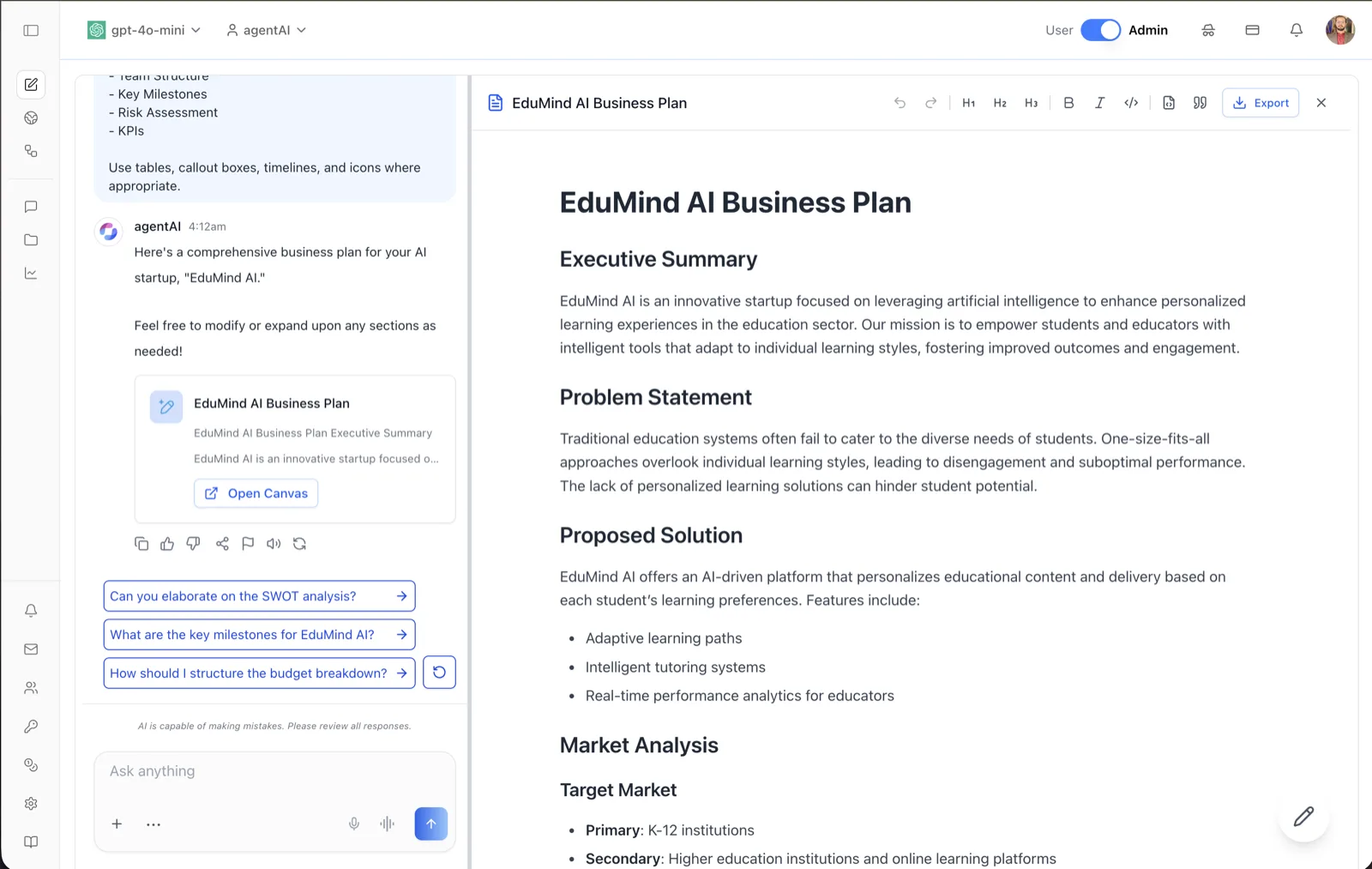
Canvas is the document workspace of OS. When the Canvas tool is active, the agent writes long-form output — plans, reports, essays, specifications — into a rich document that opens in a panel beside the chat instead of scrolling by as a plain message.
The panel is a full rich-text editor: the document renders with real headings, lists, and tables, and you can edit it directly while continuing the conversation on the left. Edits save automatically, every AI revision is kept as a version you can navigate and restore, and the finished document exports to PDF, Word, or Markdown.
To open it, click Open Canvas on a Canvas preview card in any agent response. The chat stays live in the left column — you can keep prompting the agent to revise the document while you watch it update.
Target Audience
User
Features
Document title (click to rename)
The header shows the document title next to a file icon. Clicking the title opens the Rename Canvas dialog (see Renaming a Canvas).
Version navigation
When a document has more than one version, a menu next to the title offers Previous Version and Next Version and shows "Version X of Y". Viewing an older version displays a banner — "You are viewing a previous version" — with Restore this version and Back to latest version buttons. Restoring makes the older version editable again as the current one.
Undo / Redo
The first two toolbar buttons undo and redo your manual edits inside the editor.
Heading buttons (H1, H2, H3)
Toggle the selected text between heading levels 1–3.
Bold and Italic
Standard character formatting for the selected text.
Inline code and code block
The </> button toggles inline code on the selection; the file-code button toggles a full code block with syntax highlighting.
Quote
Toggles a blockquote on the selected paragraph.
Autosave status
As you type, the header shows "Saving…" and then "All changes saved" (or an error message if a save fails). There is no manual save button — edits persist automatically.
Export
The Export button downloads the document as PDF, Microsoft Word, or Markdown (see Downloading a Canvas).
Close (X)
Closes the Canvas panel and returns the full width to the chat. The document remains available from its preview card in the conversation.
Direct editing
The document body is fully editable — click anywhere and type. On mobile widths the toolbar collapses to undo/redo plus a dropdown with the remaining formatting options.
AI edit controls
A floating pencil button in the bottom-right corner of the panel expands into quick AI editing actions (add emojis, final polish, reading level, length) that instruct the agent to rewrite the document (see Canvas Options).
Chat-driven revisions
The conversation stays connected to the document: asking the agent for changes ("expand the SWOT analysis") streams a revision into the Canvas, and each revision becomes a new version.
How to Use
Step 1: Generate a document
With the Canvas chip active in the composer, ask the agent for a document (for example, a business plan). The response includes a Canvas preview card.
Step 2: Open the Canvas
Click Open Canvas on the card. The document opens in the right-hand panel with the chat still active on the left.
Step 3: Edit directly or via the agent
Edit text in place with the formatting toolbar, or send revision requests in chat and watch the document update. The header confirms "All changes saved" as you work.
Step 4: Manage versions
Use the version menu next to the title to step through Previous Version / Next Version, and click Restore this version if you want to roll back.
Step 5: Export or close
Click Export to download the document, or X to close the panel and return to full-width chat.