Analytics: Data Reports
Overview
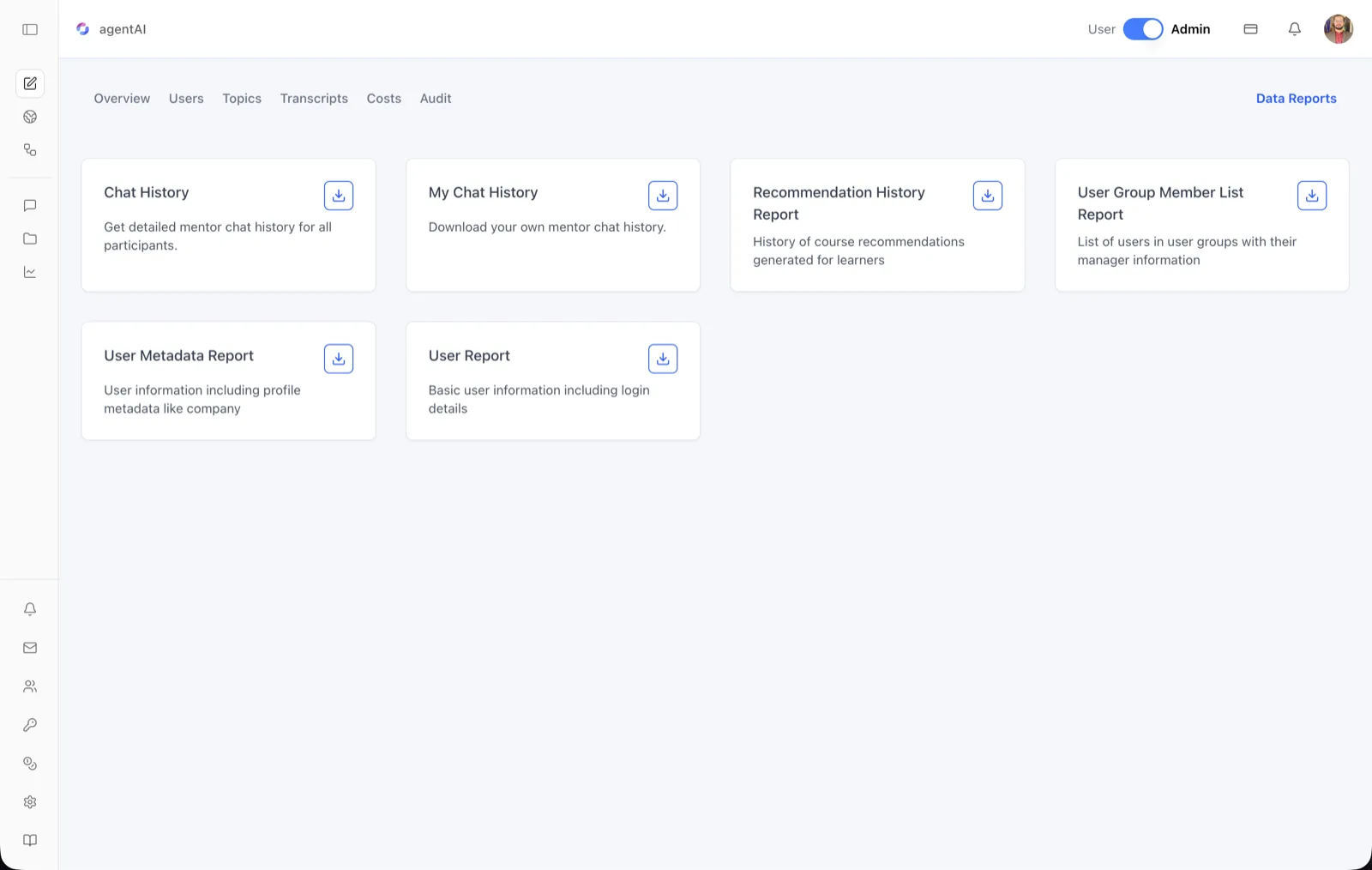
Data Reports is the export center of the analytics section. It presents a grid of report cards — chat histories, user rosters, and metadata extracts — each of which can be generated on demand and downloaded as a CSV file.
Reports are produced server-side: clicking download queues generation, the card shows a spinner while the platform builds the file, and the finished CSV either downloads directly or opens in an in-browser CSV preview/editor before you save it. The exact set of cards comes from the platform for your organization, so it can vary by organization.
To reach it, open the agent in OS, switch the header toggle to Admin, click the analytics icon in the left sidebar, then click Data Reports on the right side of the analytics tab bar (Overview · Users · Topics · Transcripts · Costs · Audit).
Target Audience
Administrator
Available Reports
Chat History
"Get detailed mentor chat history for all participants." — a full export of the agent's conversations across every user. This report downloads directly as a CSV once generated.
My Chat History
"Download your own mentor chat history." — the same export limited to your own conversations with the agent.
Recommendation History Report
"History of course recommendations generated for learners." — a log of course recommendations the platform has produced.
User Group Member List Report
"List of users in user groups with their manager information." — group membership with each member's manager, useful for org-structured deployments.
User Metadata Report
"User information including profile metadata like company." — user records enriched with profile metadata fields.
User Report
"Basic user information including login details." — the core user roster with login information.
Controls on Each Card
Download button
The blue download icon generates the report and delivers it. If a finished copy already exists, the button downloads it immediately; otherwise a dialog titled "Select date range (optional)" opens first, where you can pick a start and end date to scope the report — or leave it blank for the full range — then click Generate.
Regenerate button
Once a report has been generated, a refresh icon appears beside the download button. It rebuilds the report with the latest data (again with the optional date-range dialog), replacing the stored copy. A "Generated:" timestamp on the card shows when the current copy was produced.
CSV preview and editing
Most reports open in an in-browser CSV viewer when generation completes, so you can inspect and edit rows before saving the file. Chat History skips the preview and downloads directly. If a preview fails to load, the platform falls back to downloading the file.
How to Use
Step 1: Open Data Reports
From the agent workspace in Admin mode, click the analytics icon in the left sidebar, then click Data Reports at the right of the tab bar.
Step 2: Pick a report
Read the card descriptions and click the download icon on the report you need.
Step 3: Scope the date range (optional)
In the "Select date range (optional)" dialog, click a start and end date on the two-month calendar, or press Clear to remove a selection. Click Generate to queue the report; the icon animates while the file is built.
Step 4: Review and save the CSV
When generation finishes, review the data in the CSV preview and save it, or — for Chat History — find the CSV in your browser downloads.
Step 5: Refresh when data changes
To pull current data later, click the regenerate (refresh) icon on the card rather than re-downloading the stored copy — the stored file is only as fresh as its "Generated:" timestamp.