Agent Settings: Tasks
Overview
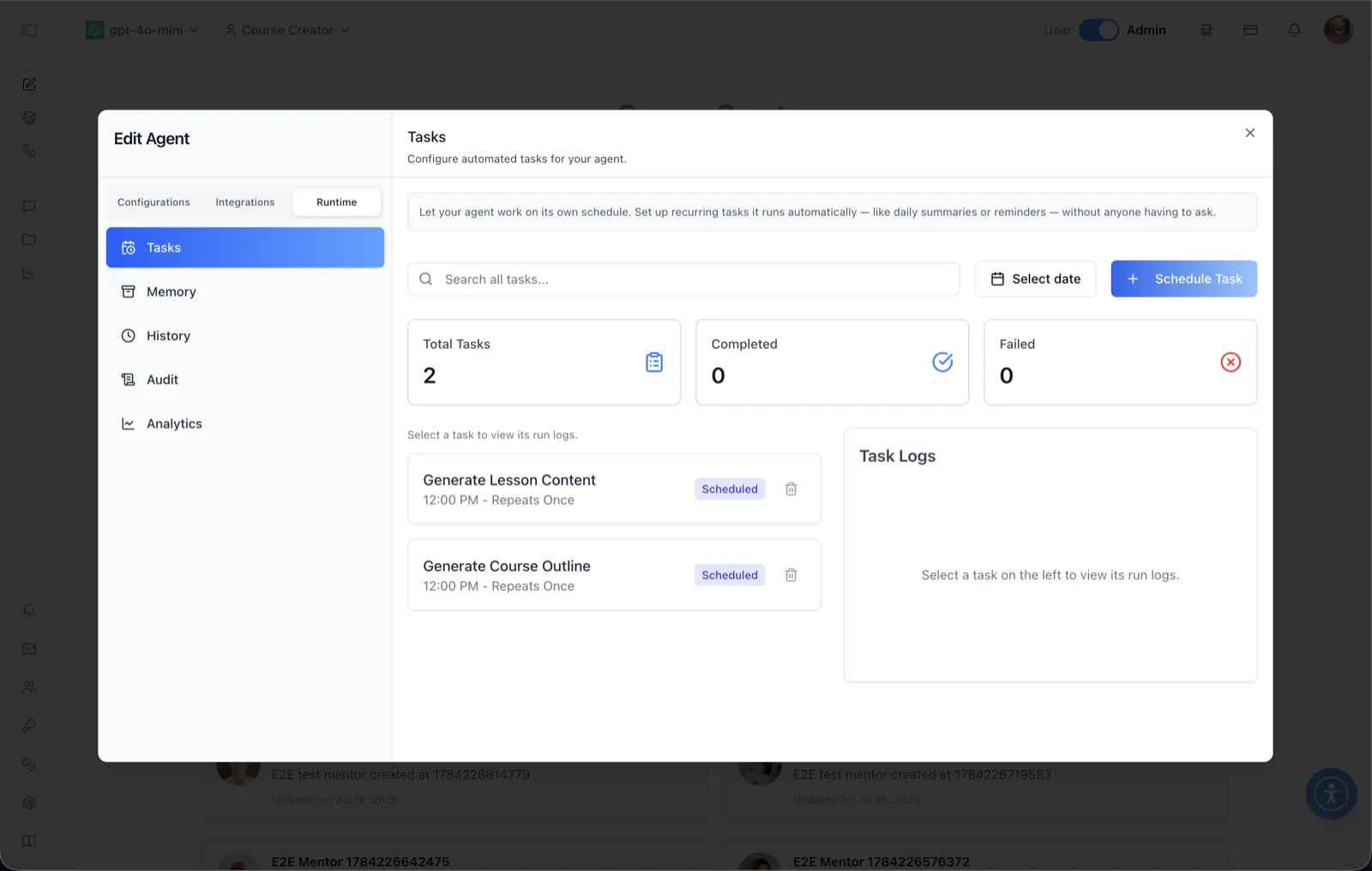
The Tasks panel schedules work an agent performs automatically, without anyone prompting it. The panel header reads: "Configure automated tasks for your agent," and the helper banner explains: "Let your agent work on its own schedule. Set up recurring tasks it runs automatically — like daily summaries or reminders — without anyone having to ask."
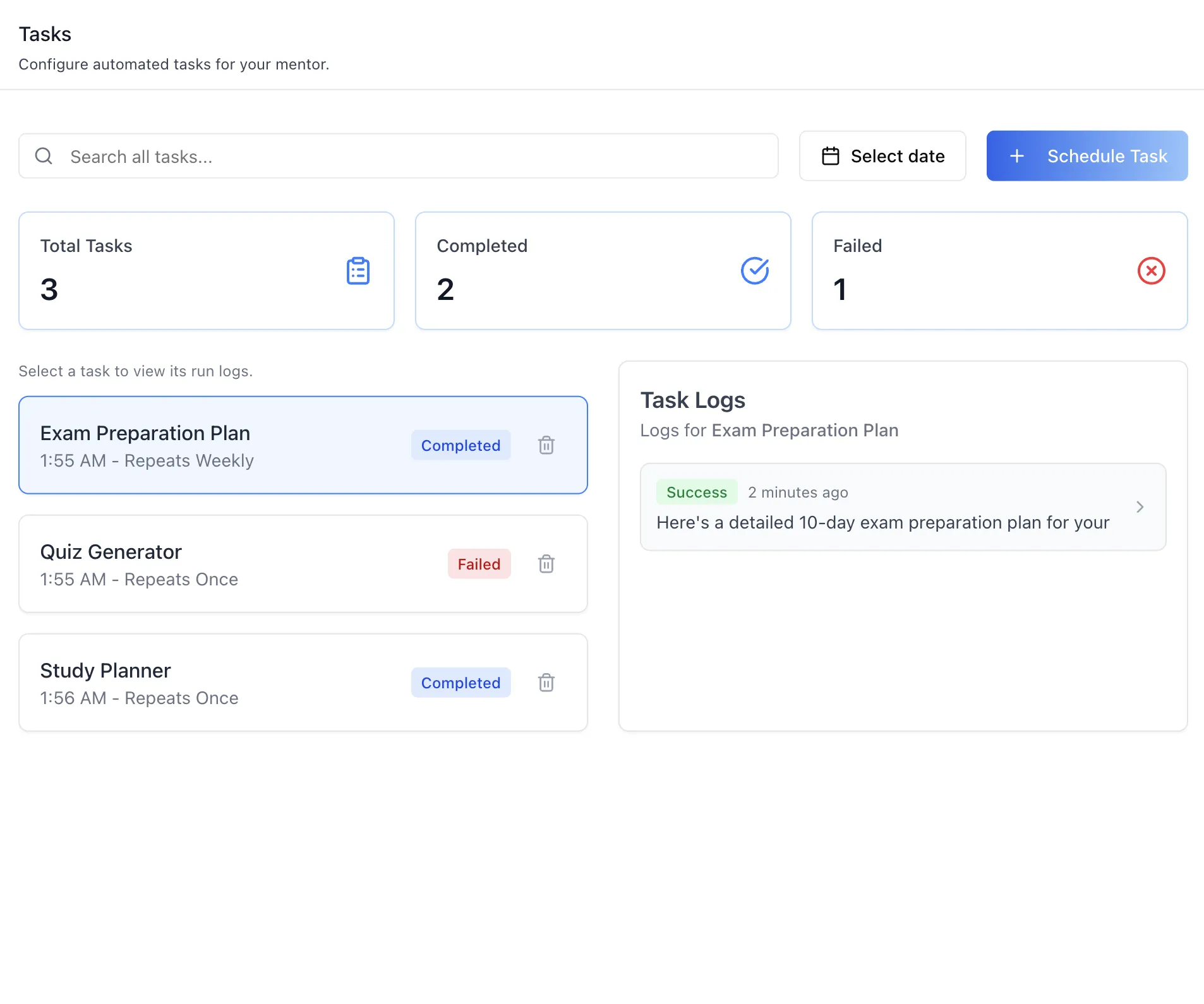
Each task is a named prompt with a start date and time and an optional repeat cadence. The panel tracks outcomes with three metric cards — Total Tasks, Completed, and Failed — and shows a per-task run log so you can verify what happened on each run. Task rows carry a status badge (for example "Scheduled") and can be deleted with the trash icon.
To reach this screen, open the Edit Agent modal, switch to the Runtime tab group (its sidebar lists Tasks, Memory, History, Audit, and Analytics), and select Tasks.
Target Audience
Administrator | Agent Builder
Panel Reference
Search all tasks
A search box that filters the task list by name. Filtering is debounced, so results update shortly after you stop typing; clearing the box restores the full list.
Select date
A date filter that narrows the task list to tasks for a chosen date.
Schedule Task
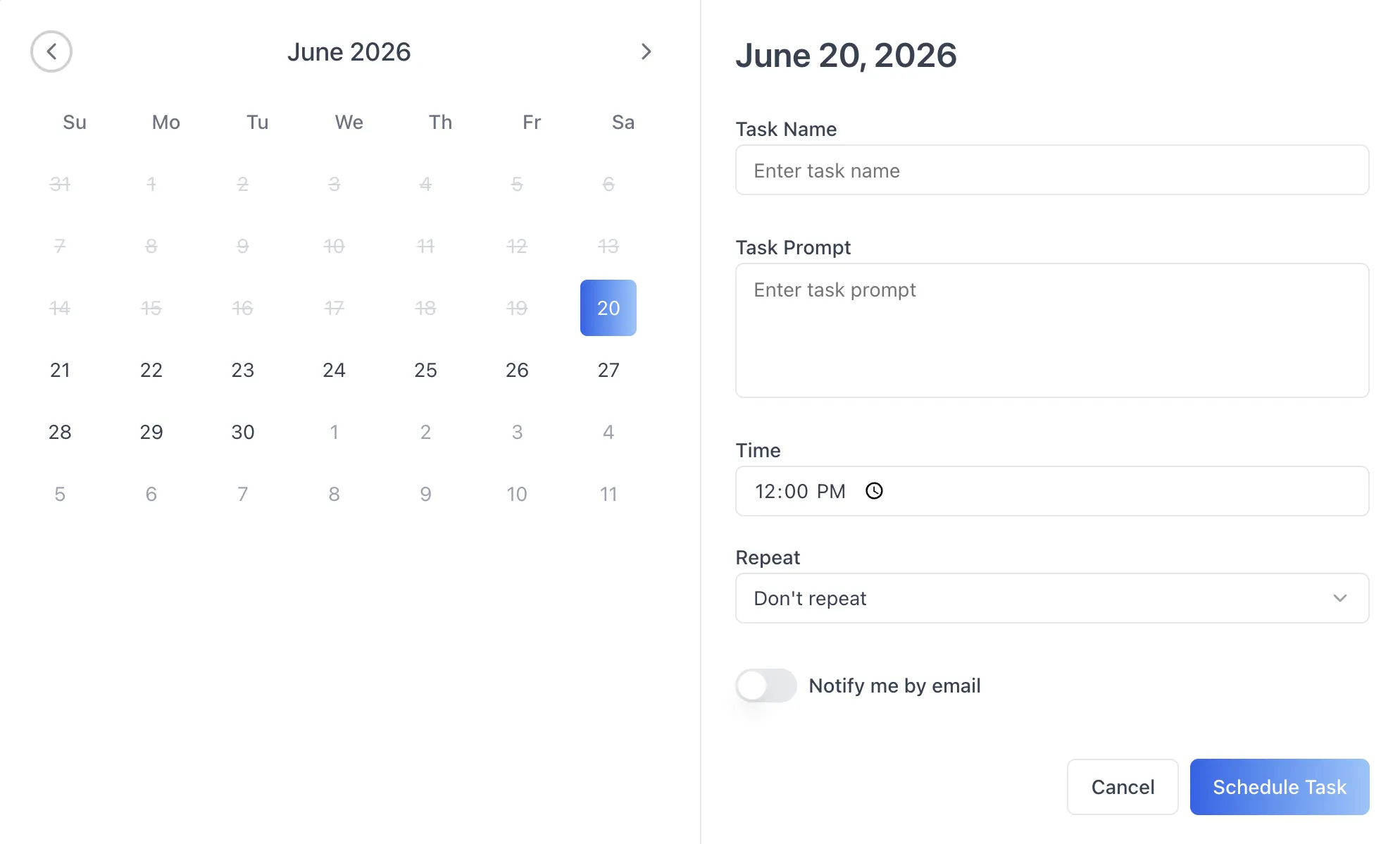
Opens the Schedule Task dialog for creating a new automated task. The dialog contains:
- Task Name — the display name for the task.
- Task Prompt — the instruction the agent executes when the task runs.
- Date — a calendar for picking the start day (defaults to today; past days are disabled).
- Time — the time of day the task runs. The start time must be in the future, otherwise the dialog blocks submission.
- Repeat — the cadence: Don't repeat, Daily, Weekly, or Monthly.
- Notify by Email — an option to receive an email notification about the task.
- Schedule / Cancel — submit the task, or dismiss the dialog without saving.
Metric cards
Three summary cards across the top of the list:
- Total Tasks — how many tasks exist for this agent.
- Completed — how many task runs finished successfully.
- Failed — how many task runs failed.
Task list
Each row shows the task name (for example "Generate Lesson Content"), its schedule ("12:00 PM - Repeats Once"), a status badge such as Scheduled, and a trash icon to delete the task (with confirmation). The caption above the list reads: "Select a task to view its run logs."
Task Logs
The right-hand pane shows the run logs of whichever task is selected in the list. Until a task is selected it reads: "Select a task on the left to view its run logs."
How to Use
Step 1: Open the Tasks panel
In the Edit Agent modal, select the Runtime tab group, then click Tasks in the sidebar.
Step 2: Schedule a task
Click Schedule Task. Give the task a name and a prompt (what the agent should do), pick the start date and a future time, choose a repeat cadence — Don't repeat, Daily, Weekly, or Monthly — optionally enable Notify by Email, and click Schedule. The task appears in the list with a Scheduled badge.
Step 3: Monitor runs
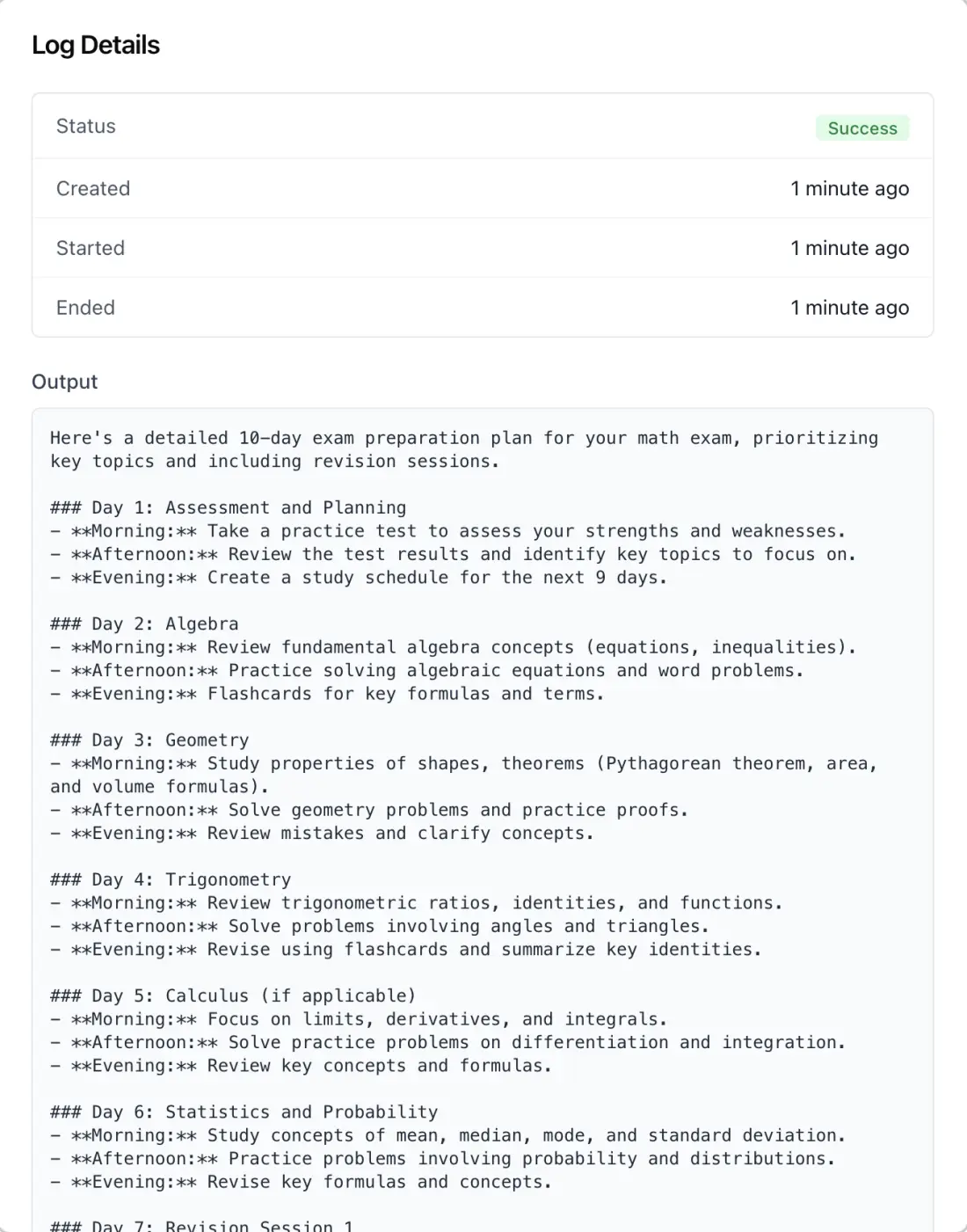
Watch the Total Tasks, Completed, and Failed cards for outcomes. Click a task in the list to open its run logs in the Task Logs pane and verify what each run did.
Step 4: Find or remove tasks
Use the search box or the Select date filter to locate a task. Click the trash icon on a row to delete a task you no longer need.