Agent Settings: Audit
Overview
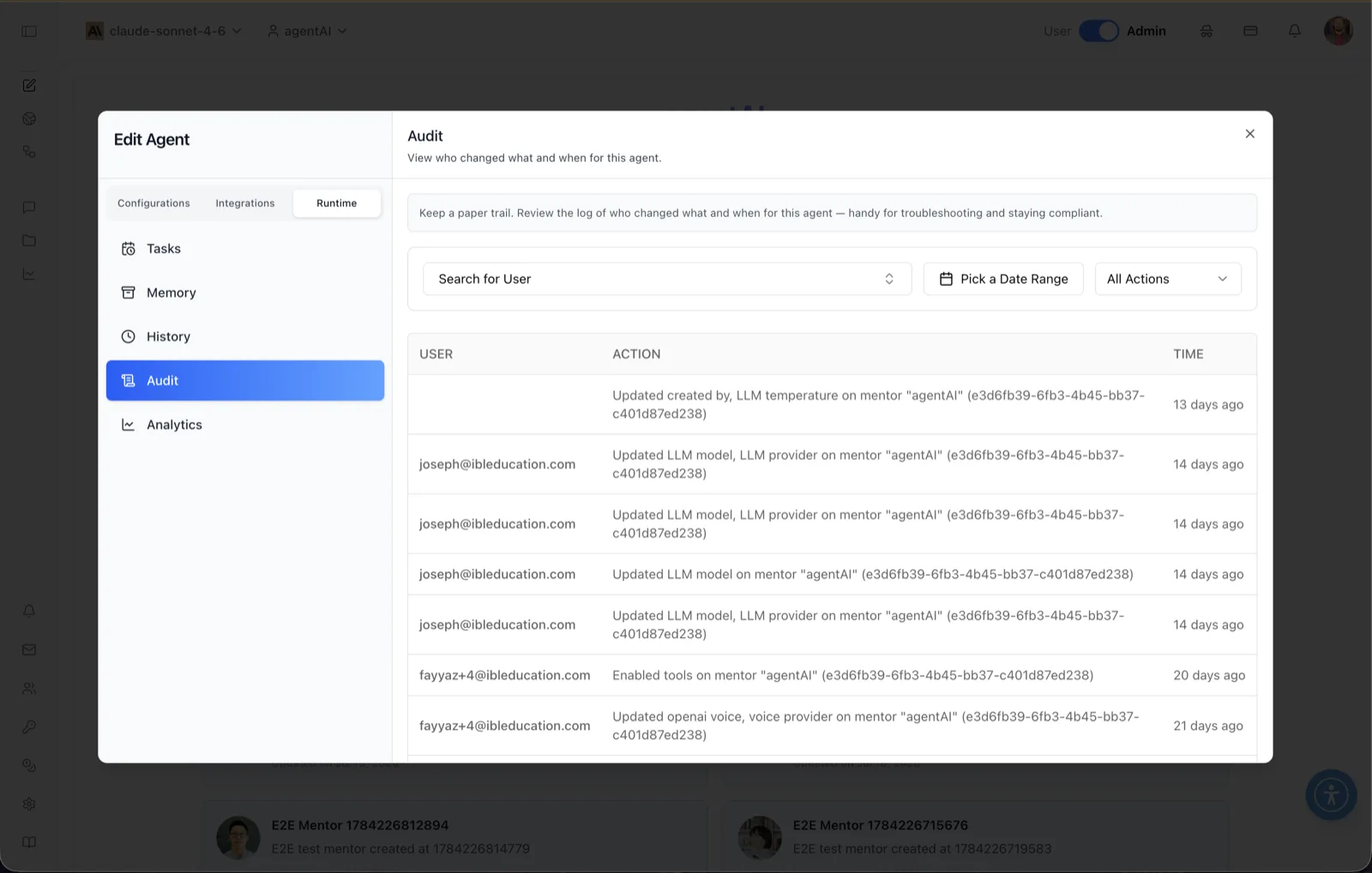
The Audit panel is the change log for an agent: it records who changed what and when. The panel header reads: "View who changed what and when for this agent," and the helper banner explains: "Keep a paper trail. Review the log of who changed what and when for this agent — handy for troubleshooting and staying compliant."
Each entry captures the user who made a change (their email), a description of the action — for example "Updated LLM model, LLM provider" or "Enabled tools" on the agent, including the agent's name and unique ID — and a relative timestamp such as "14 days ago." This makes it possible to trace a behavior change (a different model, a new voice, newly enabled tools) back to the person and moment it happened.
To reach this screen, open the Edit Agent modal, switch to the Runtime tab group (its sidebar lists Tasks, Memory, History, Audit, and Analytics), and select Audit. The same audit trail is also reachable from the Analytics area. Audit is admin-gated: users without audit-log permission do not see this tab.
Target Audience
Administrator
Panel Reference
Search for User
A searchable dropdown that filters the audit table to entries made by a specific user. Use it to review one administrator's changes in isolation.
Pick a Date Range
A calendar filter that limits the table to audit entries within a chosen date range — useful for narrowing down when a configuration change occurred.
All Actions
A dropdown that filters entries by action type, defaulting to All Actions. Selecting a specific action type shows only entries of that kind.
Audit table
The log itself, with three columns:
- USER — the email address of the account that made the change. This column can be empty for entries where no user is attributed.
- ACTION — a plain-language description of what changed, naming the fields (for example "Updated created by, LLM temperature", "Updated LLM model, LLM provider", "Enabled tools", "Updated openai voice, voice provider") together with the agent's name and unique identifier.
- TIME — a relative timestamp for the change, such as "13 days ago" or "21 days ago." Entries are listed most recent first.
How to Use
Step 1: Open the Audit panel
In the Edit Agent modal, select the Runtime tab group, then click Audit in the sidebar. The audit table loads with the most recent changes at the top.
Step 2: Narrow the log
Use Search for User to focus on one person's changes, Pick a Date Range to bound the time window, or the All Actions dropdown to isolate a particular kind of change.
Step 3: Trace a change
Read the ACTION column to see exactly which fields were updated and on which agent (the entry includes the agent's unique ID). Combine this with the USER and TIME columns to establish who made the change and when.
Step 4: Use it for compliance and troubleshooting
When agent behavior shifts unexpectedly — different answers, a new voice, changed temperature — check the audit trail first: the entry that mentions the relevant field (LLM model, tools, voice provider, and so on) identifies the responsible change.