Agent Settings: Disclaimers
Overview
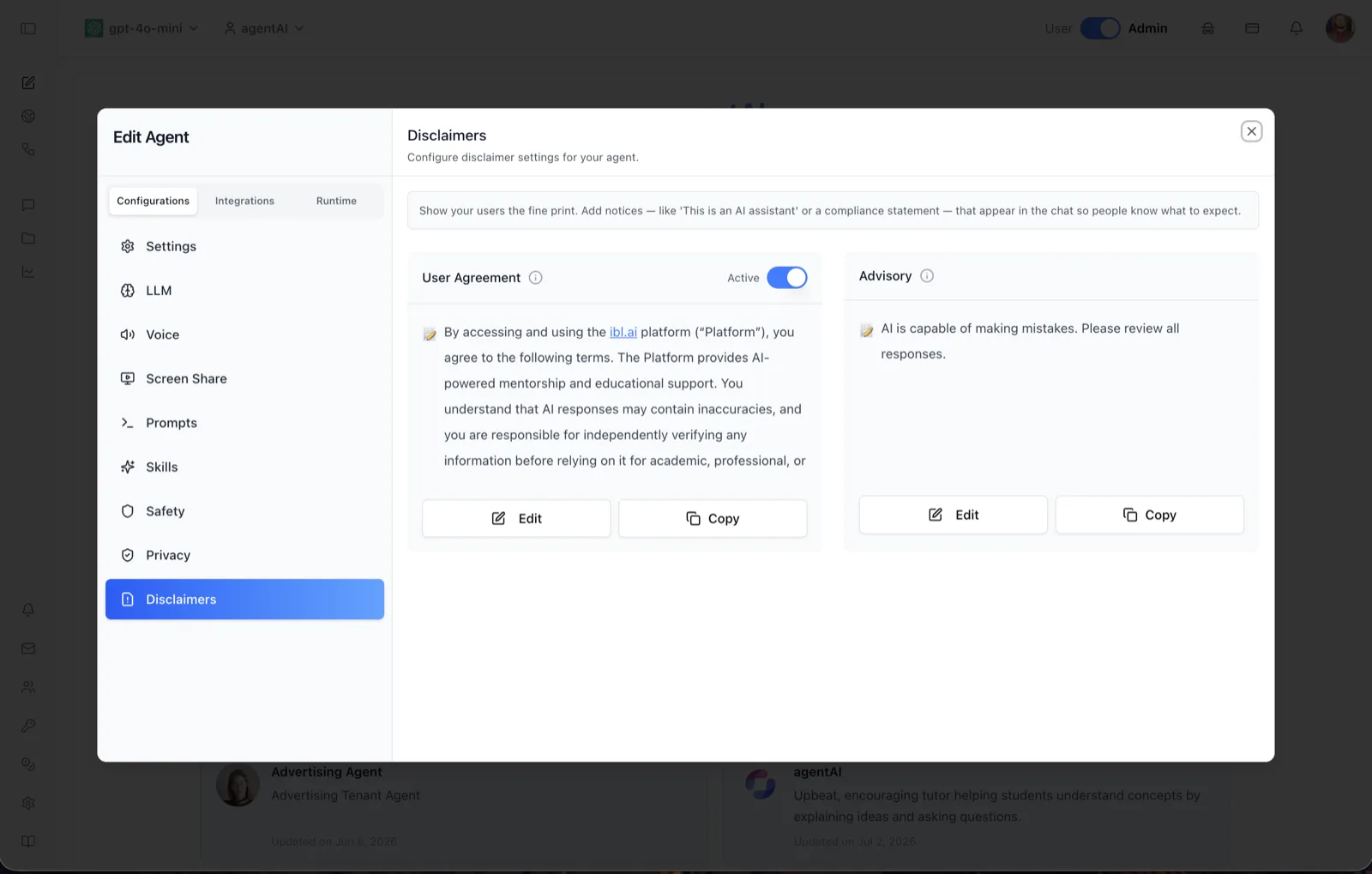
The Disclaimers panel manages the notices an agent shows its users. The header reads "Configure disclaimer settings for your agent," and the intro banner explains: "Show your users the fine print. Add notices — like 'This is an AI assistant' or a compliance statement — that appear in the chat so people know what to expect."
Two notices are configured here. The User Agreement is a terms-of-use statement users must be shown for this agent, stored as a disclaimer record scoped to the agent with its own active state. The Advisory is a short caution rendered in the chat interface — by default, "AI is capable of making mistakes. Please review all responses."
To reach this panel, open the Edit Agent modal, stay on the Configurations tab group, and select Disclaimers in the left sidebar.
Target Audience
Administrator | Agent Builder
Settings Reference
User Agreement
A card holding the agreement text shown to users of this agent; the info tooltip says it "Controls User Agreement." An Active/Inactive toggle in the card header turns the agreement on or off, saving immediately. The default content begins: "By accessing and using the ibl.ai platform ("Platform"), you agree to the following terms. The Platform provides AI-powered mentorship and educational support. You understand that AI responses may contain inaccuracies, and you are responsible for independently verifying any information before relying on it for academic, professional, or personal decisions. Do not input confidential, sensitive, or personally identifiable information of yourself or others." The card is visible to users whose role grants the view-disclaimers permission on the agent.
Advisory
A card holding the short advisory notice for the agent; the info tooltip says it "Controls Advisory." The default text is "AI is capable of making mistakes. Please review all responses." The advisory content is stored on the agent's settings as its disclaimer text.
Edit
Each card has an Edit button that opens an editor modal for that notice — one for the User Agreement content and one for the Advisory text. Saving the editor persists the new text for this agent.
Copy
Each card's Copy button copies the current notice text to the clipboard, useful for reusing the same wording across agents.
How to Use
Step 1: Open the Disclaimers panel
Open the Edit Agent modal, keep Configurations selected, and click Disclaimers in the sidebar.
Step 2: Review the defaults
Read the default User Agreement and Advisory text in each card and decide whether they fit your deployment, brand, and compliance requirements.
Step 3: Edit the notices
Click Edit on the User Agreement card to open its editor and replace or amend the terms — for example, adding an organization-specific compliance statement. Do the same on the Advisory card to change the in-chat caution.
Step 4: Activate the User Agreement
Use the Active/Inactive toggle on the User Agreement card to control whether the agreement is enforced for this agent. The change saves immediately.