Organization Settings: Memory
Overview
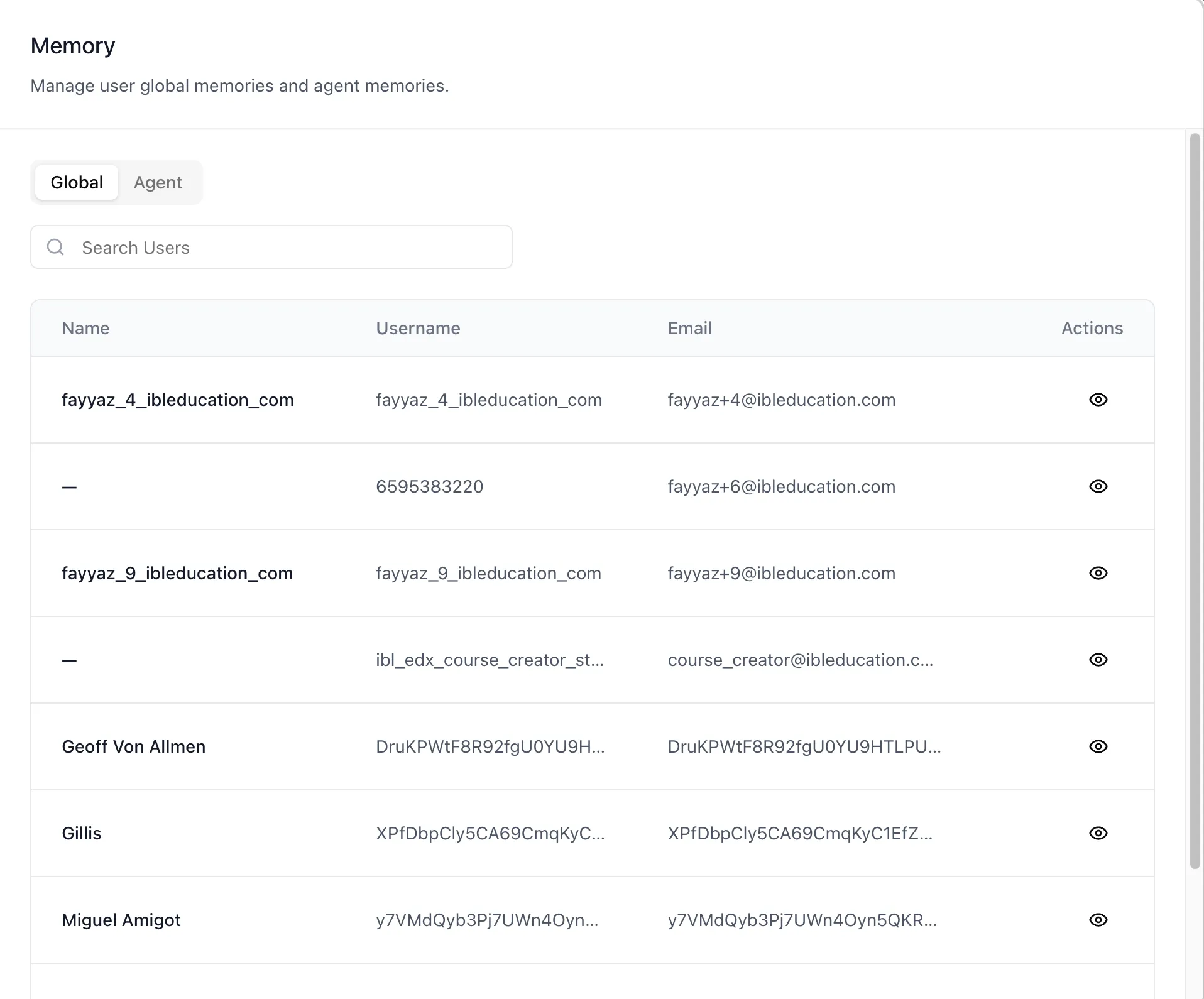
The Memory settings surface is where an administrator manages memories that belong to other people and to agents — "Manage user global memories and agent memories" for the whole organization from one place.
It has two tabs that answer two different questions. Global works user by user: pick a person and manage the memories that follow them across every agent, along with the two switches that control whether the platform is allowed to learn from their conversations at all. Agent works agent by agent: pick an agent and manage the memories it has accumulated about the people who talk to it.
This is the administrative counterpart of two surfaces that already exist for individuals. A user manages their own memories under Profile: Memory, and an agent's own memories are managed in Agent Settings: Memory. This page is the same data, reachable by someone with the authority to act on another person's behalf — which is what you need when a memory is wrong, sensitive, or belongs to someone who has left.
To reach this screen, open the organization's Account settings and select the Memory tab.
Target Audience
Administrator | Data Protection Officer | Support Team
Panel Reference
Global / Agent tabs
The two ways into the same memory store. Global lists the organization's users; Agent lists its agents. Each tab loads its own data and is permission-gated on its own endpoints.
Search Users
A debounced search across the organization's users on the Global tab. Very short terms — under three characters — are treated as no search at all rather than matching noise. The table pages ten users at a time.
Users table
Name, Username, and Email for each user, with a view action on every row. Accounts with no username are left out, because the memory endpoints have no way to address them.
Global Memories popup
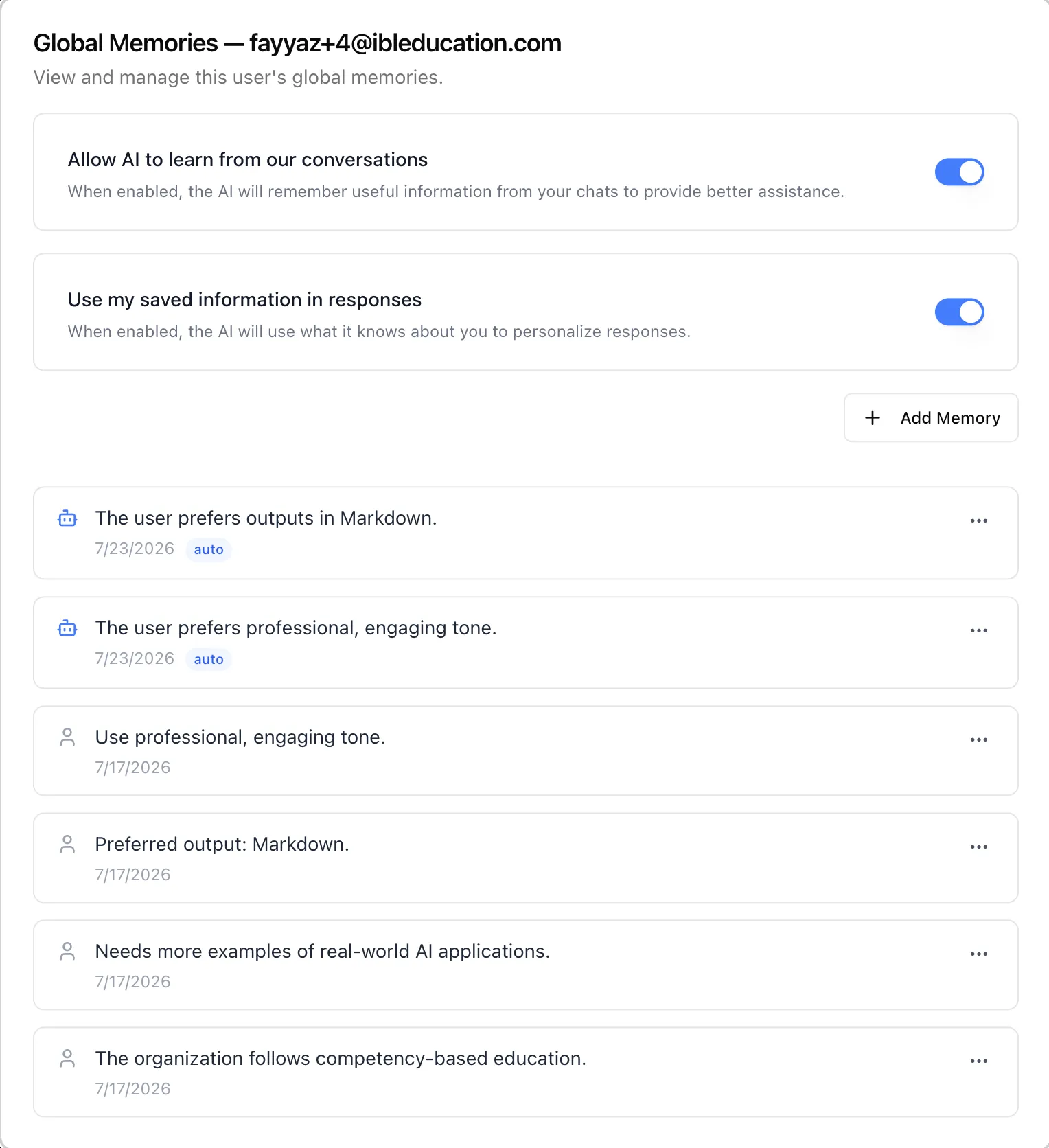
Opening a row shows everything the platform remembers about that person across all agents:
- "Allow AI to learn from our conversations" — their memory-capture switch. Off means nothing new is recorded.
- "Use my saved information in responses" — their personalization switch. Off means existing memories stay stored but are not used to shape replies.
- Add Memory and the memory list, twenty-five to a page. Each row carries the memory text, its date, an edit and delete menu, and — where the memory was captured automatically from chat rather than typed in by hand — a robot icon and an
autobadge.
Agent filter
An autocomplete over the organization's agents on the Agent tab, from two characters up. Picking an agent narrows the table to it.
Agents table
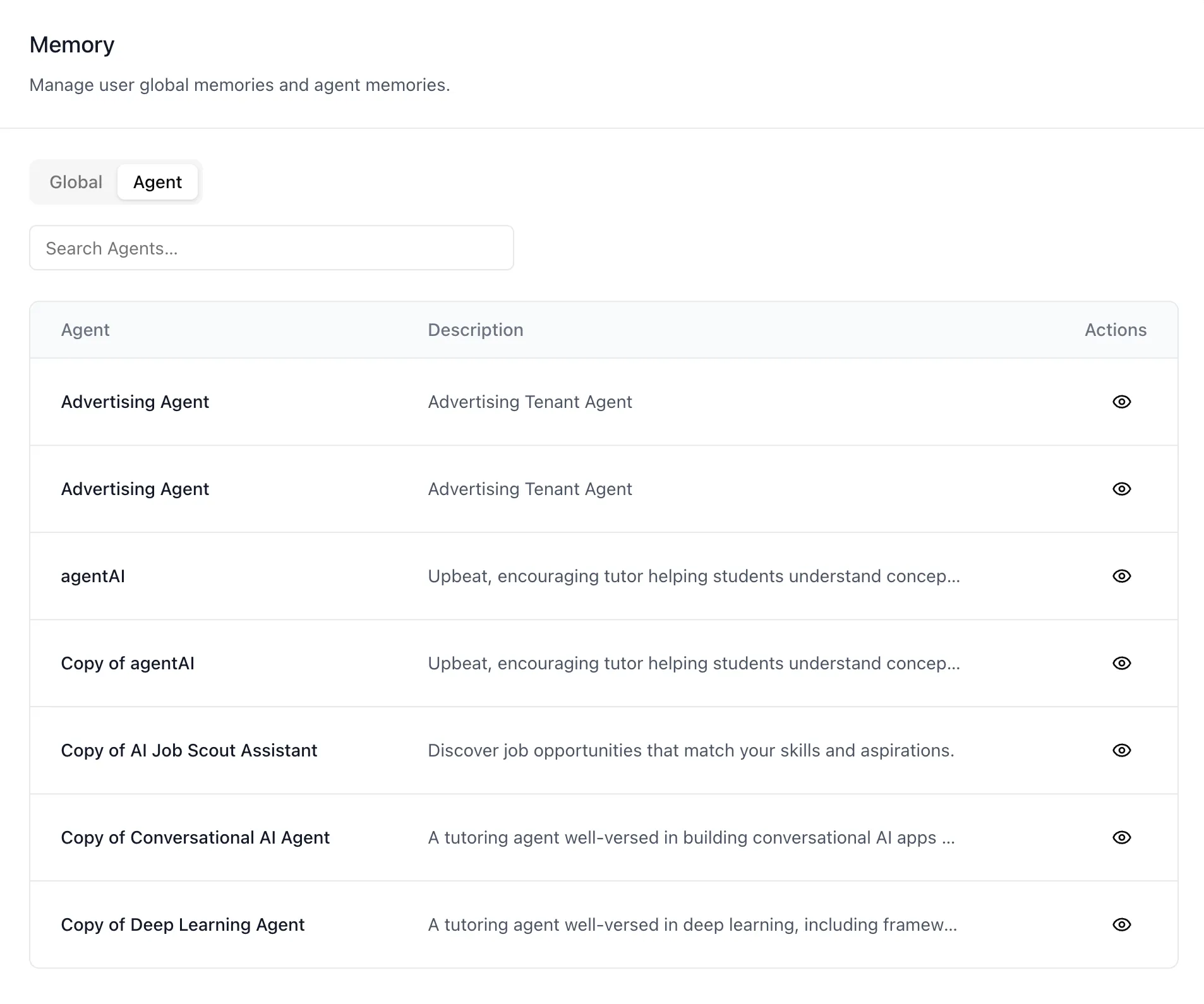
Agent and Description for each agent, ten to a page, with a view action on every row.
Agent memories popup
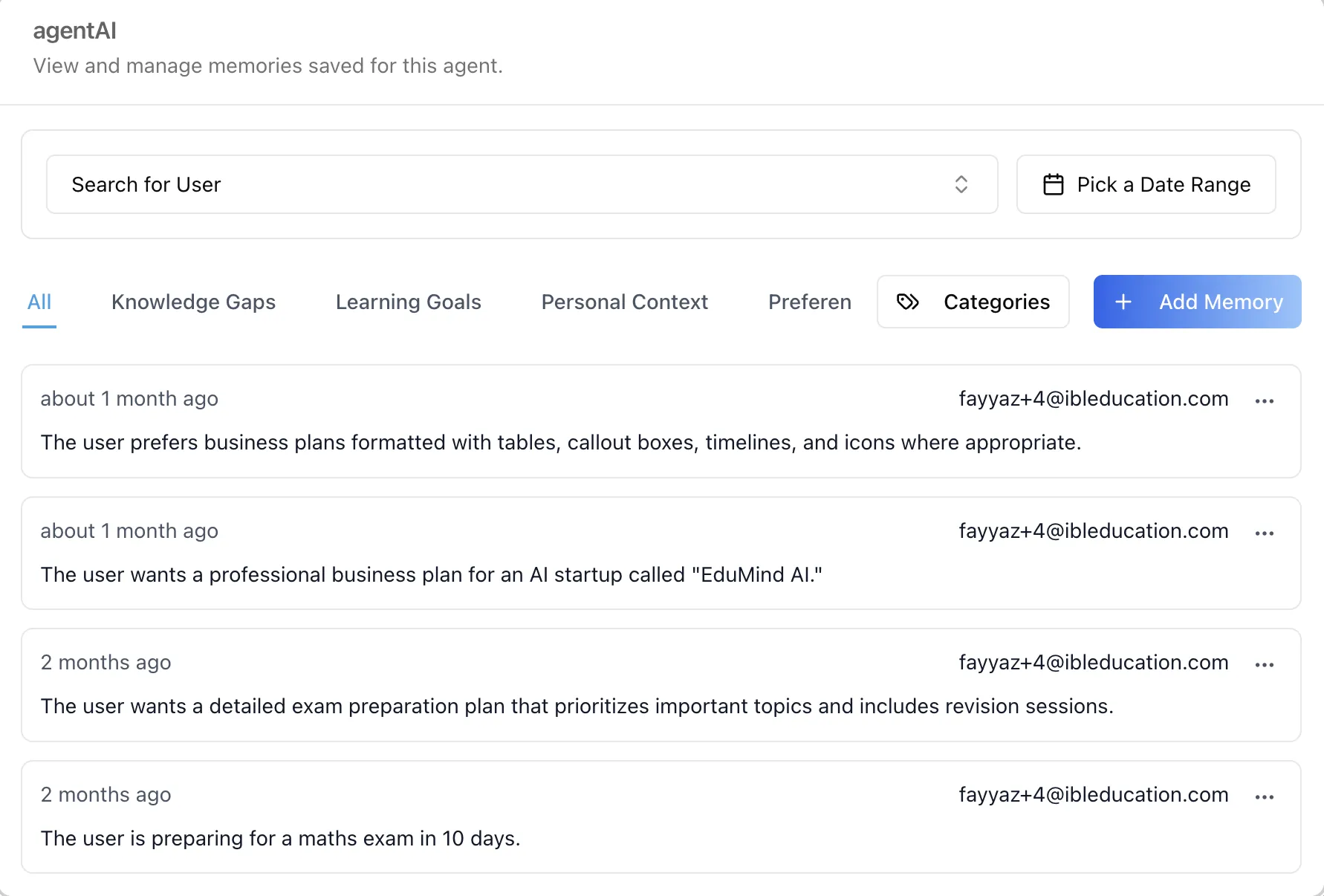
Opening an agent row loads the same memory manager the agent's own Memory tab renders, for that agent: a Search for User filter, a Pick a Date Range control, category tabs (All, Knowledge Gaps, Learning Goals, Personal Context, Preferences, and any you have added), a Categories manager for creating, renaming, and deleting categories, Add Memory, and one card per memory showing how long ago it was recorded, the email of the user it concerns, and an actions menu.
How to Use
Step 1: Open Memory settings
Go to the organization's Account settings and select the Memory tab. It opens on Global.
Step 2: Correct or remove one person's memories
Search for the person, open their row, and read what has been stored. Edit a memory that is wrong, or delete one that should never have been kept — an auto badge tells you the platform captured it from a conversation rather than someone entering it deliberately.
Step 3: Stop future capture where it is not wanted
Switch "Allow AI to learn from our conversations" off for that user. Existing memories stay until you remove them; nothing new is added. Turning off "Use my saved information in responses" instead leaves the record intact but stops it influencing replies — the right choice when you want to preserve the history but suspend its effect.
Step 4: Review what an agent has learned
Switch to the Agent tab, filter to the agent, and open it. Use the category tabs and date range to find the memories you care about, or the user filter to see everything one agent has retained about one person.
Step 5: Keep the category scheme tidy
Inside an agent's memories, use the Categories manager to add the categories your organization actually reasons in, and rename or delete the ones nobody uses. Categories are what make a large memory store reviewable later.
Behavior Notes
- Memory search has to be enabled first. With memory search switched off for the organization, this tab shows a "feature disabled" notice — the same gate the profile Memory tab applies. There is nothing to manage until it is on.
- Each section is permission-gated separately. The users list, the agents list, and the memory endpoints authorize independently, so a role can be allowed one and denied another; the denied section shows its own notice instead of failing the page.
automarks a captured memory, not a protected one. Memories the platform captured from conversations are flagged to distinguish them from ones a person entered deliberately. Both are equally editable and deletable here.- The two toggles do different things. Capture governs what gets written; personalization governs what gets read back. Turning off capture alone leaves earlier memories in play.
- The same memory has three doors. What you change here is what the user sees on their own Profile: Memory page, and what the agent uses in conversation — there is one store, reachable from three surfaces with different authority.
Building Memory Administration Into Your Own App
The tenant Memory surface ships in the ibl.ai SDK as a tab of the Account page, so the same administrative view can live in a product you build yourself. Install the iblai/vibe skills and render the Account page targeting its memory tab; the underlying data-layer hooks are also exported, so a custom screen can be built directly on the same endpoints.
One detail matters when doing so: reads are made with the administrator as the caller and the managed user passed as a parameter, while writes address the managed user's own path and let the backend resolve the administrator's permissions. The reusable skill for this workflow is iblai-vibe-memory, and the SDK overview is at Vibe SDK.