Chat Interface
Overview
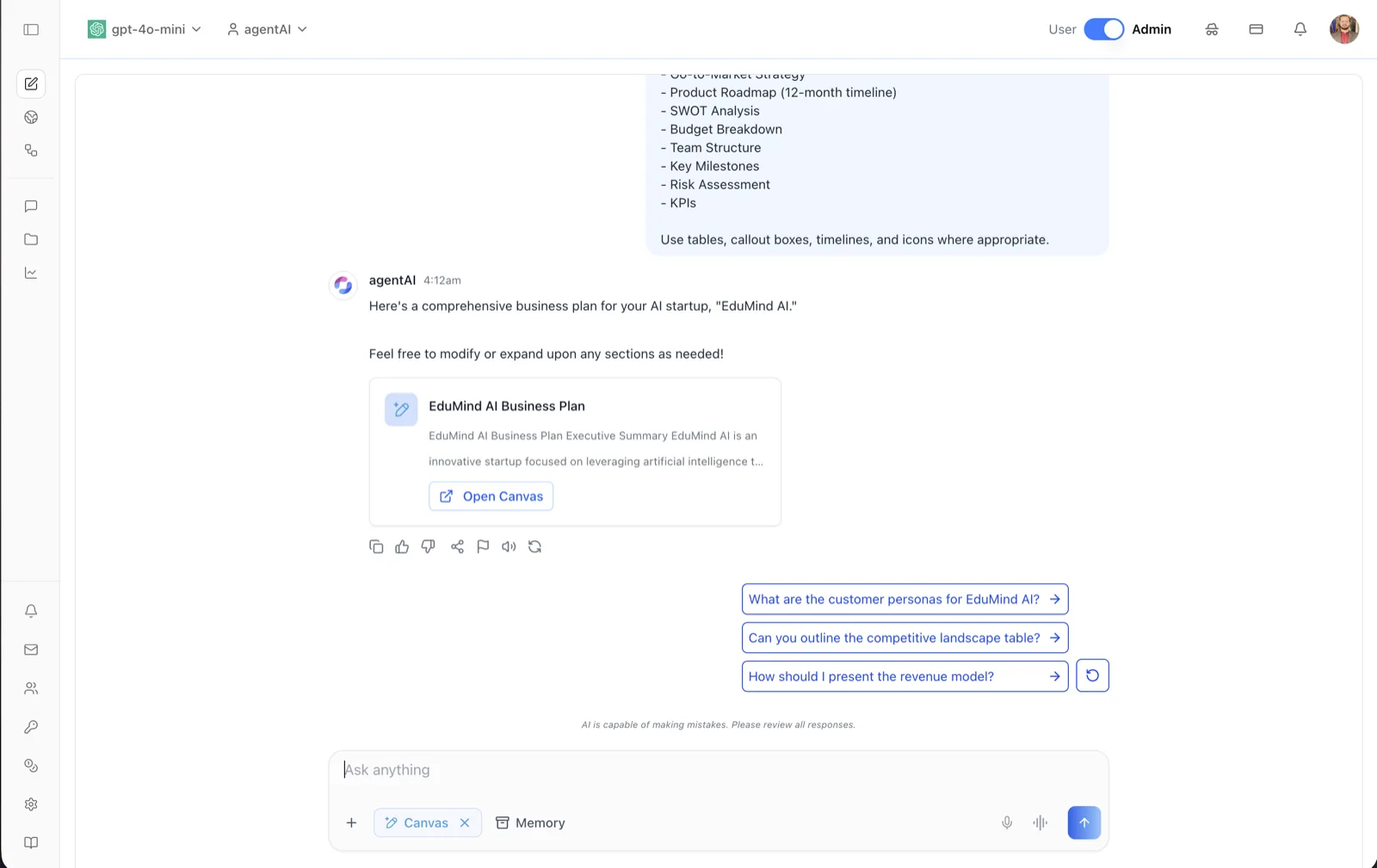
The chat interface is the main workspace of OS, ibl.ai's open-source AI agent platform. It is where you converse with an AI agent: you type (or dictate) a prompt, the agent streams back a response, and rich outputs such as Canvas documents appear inline in the conversation.
The screen is organized into three zones. The top bar holds the LLM model selector, the agent selector, and the User/Admin mode toggle; the center shows the running conversation; and the bottom holds the message composer with its tool chips and voice controls.
You land on the chat interface immediately after signing in at os.ibl.ai and selecting an agent. The left icon rail navigates to the other areas of the platform (new chat, Explore, chat history, projects, analytics, notifications, and settings). On your very first visit a short guided tour points out the controls described below — see First-visit product tour.
Target Audience
User | Administrator (the model selector and the User/Admin toggle are administrator-only)
Features
First-visit product tour
The first time you land on the chat page, a short guided tour walks you through the controls. Each step dims the rest of the screen and puts a tooltip beside the element it is describing, with a Next button, a Back button, an n of N counter, and a Skip tour link.
The tour has up to six steps, in this order:
| # | Step | What it points at | Shown when |
|---|---|---|---|
| 1 | Ask anything | The message composer | Always |
| 2 | Your profile | The profile menu in the top bar | You are signed in |
| 3 | Private mode | The private-mode toggle in the top bar | The toggle renders (the feature is enabled for your organization) |
| 4 | Conversation starters | The starter pills under the composer | The agent has starters configured. This step may scroll them into view |
| 5 | Explore agents | The Agents menu in the left sidebar | The Agents menu has items |
| 6 | Manage your organization | The account tools in the sidebar footer (invites, management, integrations, and the rest) | Administrators only, and only while the User/Admin toggle is set to Admin |
A step whose target is not on your screen is dropped before the tour opens, so the n of N counter always reflects the steps you will actually see. The submit button is deliberately not its own step — it sits inside the highlighted composer.
Finishing or skipping both count as seen. Done on the last step, Skip tour, the X, and the Esc key all end the tour and record the outcome, and it does not open again. The outcome is stored on your user metadata rather than in the browser, so the tour follows your account and does not reappear when you sign in on another device or clear your browser data. Clicking the dimmed overlay does nothing, and clicks on the highlighted element itself are blocked while the tour is open, so a step cannot be dismissed by accident.
Add ?tour=1 to the chat page's URL to replay the tour after you have completed it — useful when someone is walking a colleague through the platform, or when support needs to see what a new user sees. If the tour is ever reworked, everyone who saw the earlier version is shown the new one once.
The tour runs on the agent chat page only, because most of its steps are the chat page's own controls. It does not open on Explore, projects, workflows, analytics, or notifications; it does not open in embedded mode; and it does not open on a phone. When a first-visit dialog such as a disclaimer or a user agreement is on screen, the tour waits for you to dismiss it rather than covering it. All of the tour's copy is translated alongside the rest of the interface.
LLM model selector
The top-left control shows the LLM currently powering the agent (for example gpt-4o-mini, with the provider's logo). Administrators can click it to open the LLM model selection dialog and switch the agent to a different provider or model. Regular users see the agent's model but cannot change it.
Agent selector
Next to the model selector, a dropdown labeled with the current agent's name (for example agentAI) switches between agents and agent-related views. The dropdown also carries a top "New Chat" action, and, when available, a footer "Modify" action that forks the agent so you can customize your own copy.
User / Admin toggle
Administrators see a User | Admin switch in the top-right. In Admin mode the full administrative surface is available (model selection, settings, analytics); switching to User mode previews the platform exactly as a regular user experiences it.
Notification bell
The bell icon opens a dropdown listing recent notifications with their titles and relative timestamps. From the dropdown you can open a notification, click View all to go to the notification inbox, or click Mark all as read.
Profile menu
Your avatar in the top-right corner opens the user profile dialog, covering account details, memory, privacy, and security settings.
Conversation view
Your messages appear as right-aligned bubbles; agent responses appear on the left with the agent's avatar, name, and a timestamp. Responses stream in as they are generated and render full markdown, including tables, lists, and code blocks.
Canvas preview card
When the agent produces a document with the Canvas tool, the response embeds a preview card showing the document's title and the first lines of its content. Clicking Open Canvas opens the full document in the Canvas panel beside the chat (see Canvas). While the document is still being generated the card shows a "Generating..." indicator.
Message actions
Under each agent response sits a row of action icons: Copy to Clipboard copies the response; Positive Feedback and Negative Feedback (thumbs up/down) rate it; Share copies a share link to the clipboard; Report Inappropriate Content flags the message; Read Aloud speaks the response with text-to-speech (and toggles to "Stop Reading Aloud"); and Retry regenerates a new response to your last message.
Suggested follow-up questions
After a response, the platform proposes guided follow-up prompts as clickable pills (for example "What are the customer personas for EduMind AI?"). Clicking one sends it as your next message; the circular refresh button beside them fetches a new set of suggestions.
Message composer
The "Ask anything" box at the bottom is where you write prompts. Press Enter to send, or click the arrow submit button; while a response is streaming, the submit button becomes a stop button that halts generation. A configurable disclaimer — "AI is capable of making mistakes. Please review all responses." in the screenshot — is shown above the composer.
Attach files (+)
The + button opens the upload menu and its Upload File action, letting you attach documents or images to your message. Attached files are listed above the composer with per-file remove and retry controls.
Tool chips (Canvas, Skills, Memory, and more)
Inline chips in the composer toggle per-session tools: Canvas (generate documents into the Canvas panel), Code (scaffold and run a real application from the chat box — see Code Mode), Cowork, Skills (browse the agent's skills), Prompts (open the prompt gallery), Study Mode, Deep Research (extended multi-step reasoning), and Memory. An active tool shows as a highlighted chip with an X to turn it off — in the screenshot, Canvas is active. The Memory chip opens a menu where you can view, add, edit, and delete the memories the agent keeps about you. When the composer is narrow, extra tools collapse into an overflow (...) menu.
Skills and the / picker
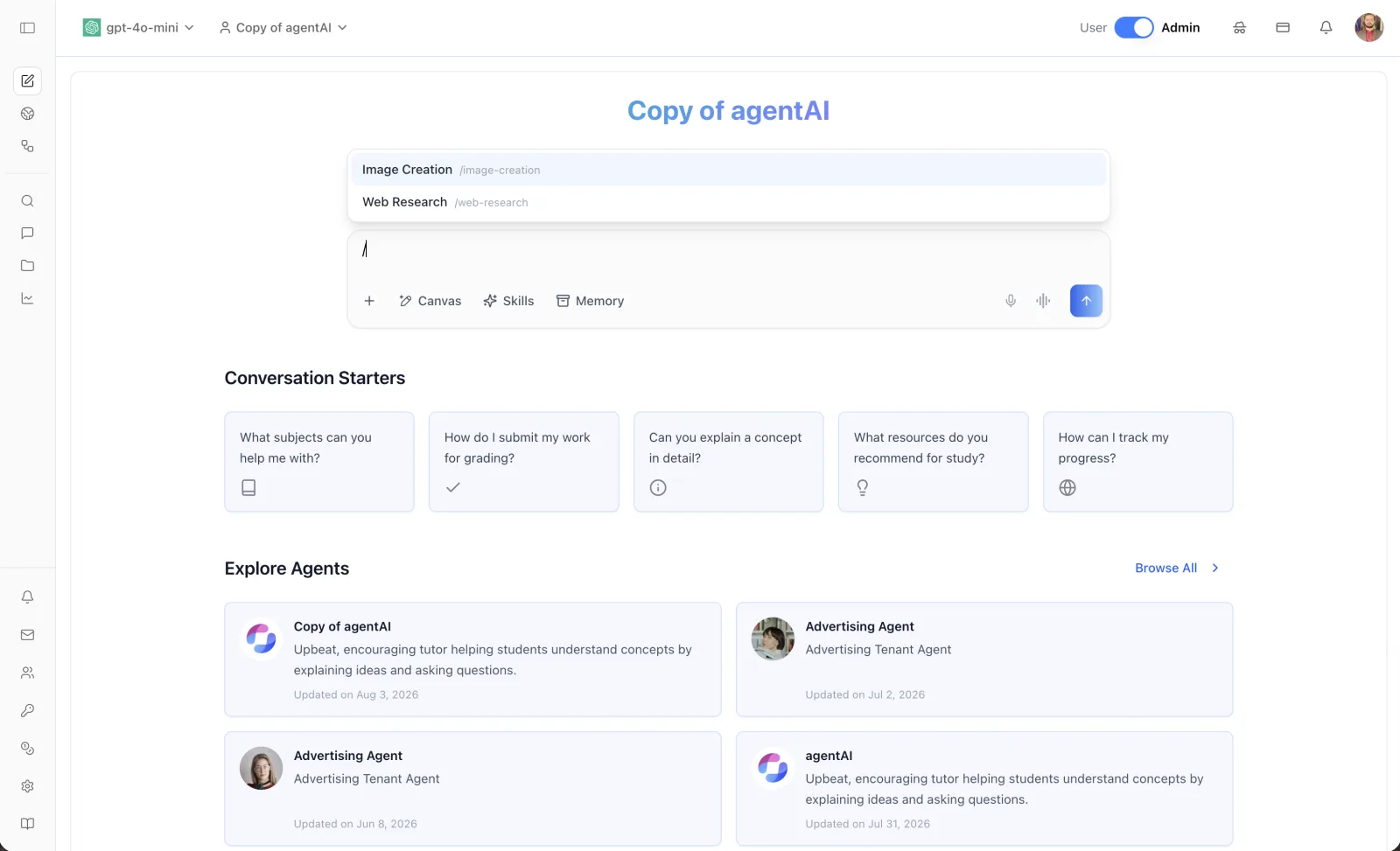
Agent Skills are reusable playbooks the agent follows for a specific job. Type / as the first word of a message to open a picker listing the skills this agent carries, each shown by name and /slug. Arrow keys move through the list, Enter or Tab inserts /slug into the composer, and Esc dismisses it — plain text that happens to start with / is never blocked. Only enabled skills appear. Administrators manage which skills an agent carries in Agent Settings: Skills.
Voice input
The microphone icon records a voice message and transcribes it into the composer (its tooltip reads "Voice Record").
Voice call
The waveform icon starts a real-time voice call with the agent, powered by WebRTC/LiveKit. Screen sharing into the chat session is also available from the composer when enabled for the agent.
How to Use
Step 1: Pick an agent
Use the agent dropdown in the top bar to select the agent you want to talk to, or choose New Chat to start a fresh session.
Step 2: Compose your prompt
Type into the "Ask anything" box. Optionally attach files with +, toggle tools such as Canvas or Deep Research, or use the microphone to dictate.
Step 3: Send and review
Press Enter or click the arrow button. The response streams in; if the Canvas tool produced a document, click Open Canvas on the preview card to view and edit it.
Step 4: Act on the response
Use the action icons to copy, rate, share, report, or listen to the response — or click Retry to regenerate it. Click a suggested follow-up pill to continue the conversation with one click.