Agent Settings: History
Overview
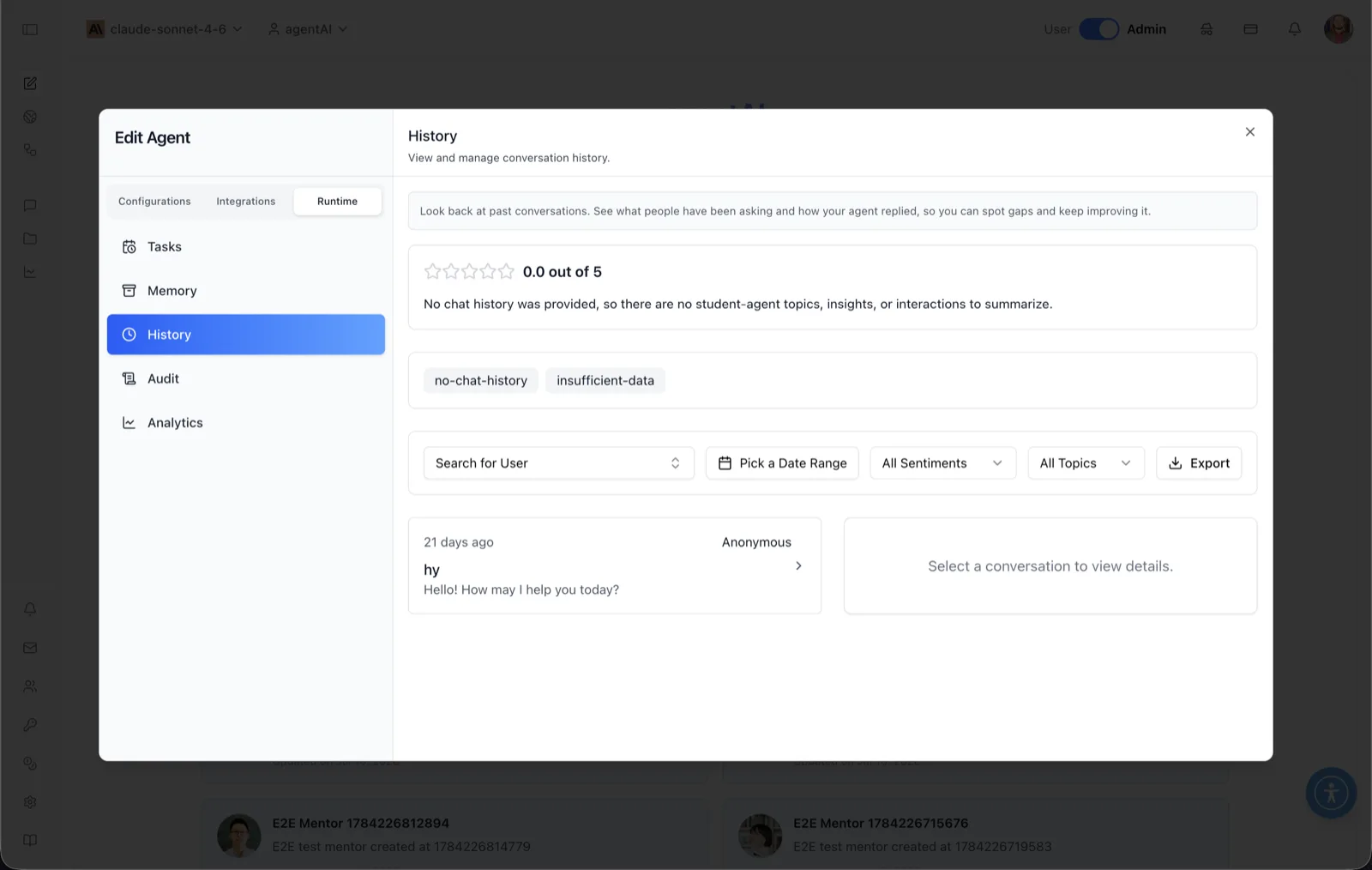
The History panel is where administrators review past conversations with an agent. The panel header reads: "View and manage conversation history," and the helper banner explains: "Look back at past conversations. See what people have been asking and how your agent replied, so you can spot gaps and keep improving it."
The panel opens with an AI-generated summary block: a star rating out of 5 for the agent's conversations, a short narrative summary of the topics and interactions, and topic chips extracted from the chat history. When there is no chat history yet, the rating shows "0.0 out of 5" with an explanatory note (for example, "No chat history was provided, so there are no student-agent topics, insights, or interactions to summarize.") and placeholder chips such as "no-chat-history" and "insufficient-data."
Below the summary sit the filters and the conversation browser: a list of conversations on the left and a detail pane on the right that reads "Select a conversation to view details." until one is chosen. To reach this screen, open the Edit Agent modal, switch to the Runtime tab group (its sidebar lists Tasks, Memory, History, Audit, and Analytics), and select History.
Target Audience
Administrator | Agent Builder
Panel Reference
Rating summary
A star rating ("{rating} out of 5") with a text summary of the conversation history. It condenses what users have been discussing with the agent; with no conversations yet, it explains that there is nothing to summarize.
Topic chips
Tag-style chips below the summary showing topics detected across conversations. In an empty state, the chips read "no-chat-history" and "insufficient-data."
Search for User
A searchable dropdown that filters the conversation list to a specific user, with an All Users option.
Pick a Date Range
A calendar filter that limits the conversation list to a chosen date range.
All Sentiments
A dropdown that filters conversations by detected sentiment — Positive, Neutral, or Negative — defaulting to All Sentiments.
All Topics
A dropdown that filters conversations by detected topic, defaulting to All Topics.
Export
Downloads the chat history as a file, respecting the active filters. The button shows "Exporting..." while the download is being prepared.
Conversation list
Each conversation card shows a relative timestamp (for example "21 days ago"), the user's name — or "Anonymous" for unauthenticated users — the conversation title, and a preview of the reply (for example "Hello! How may I help you today?"). The list supports pagination when there are many conversations.
Conversation details pane
Clicking a conversation opens it in the right-hand pane, where the full transcript can be read message by message. Until a conversation is selected, the pane reads "Select a conversation to view details."
How to Use
Step 1: Open the History panel
In the Edit Agent modal, select the Runtime tab group, then click History in the sidebar. The rating summary, topic chips, and conversation list load.
Step 2: Scan the summary
Read the star rating, narrative summary, and topic chips for a quick sense of how conversations are going and what users ask about most.
Step 3: Filter the conversations
Narrow the list with Search for User, Pick a Date Range, All Sentiments, or All Topics — for example, filter to Negative sentiment to find conversations where the agent may have fallen short.
Step 4: Read a transcript
Click a conversation card to open it in the detail pane and review the full exchange message by message. Use what you find to adjust the agent's prompts, datasets, or settings.
Step 5: Export if needed
Click Export to download the (filtered) chat history as a file for offline review, sharing, or archiving.